Skip to content

How to Import Data from the Shopify Source

Before proceeding, please make sure that:

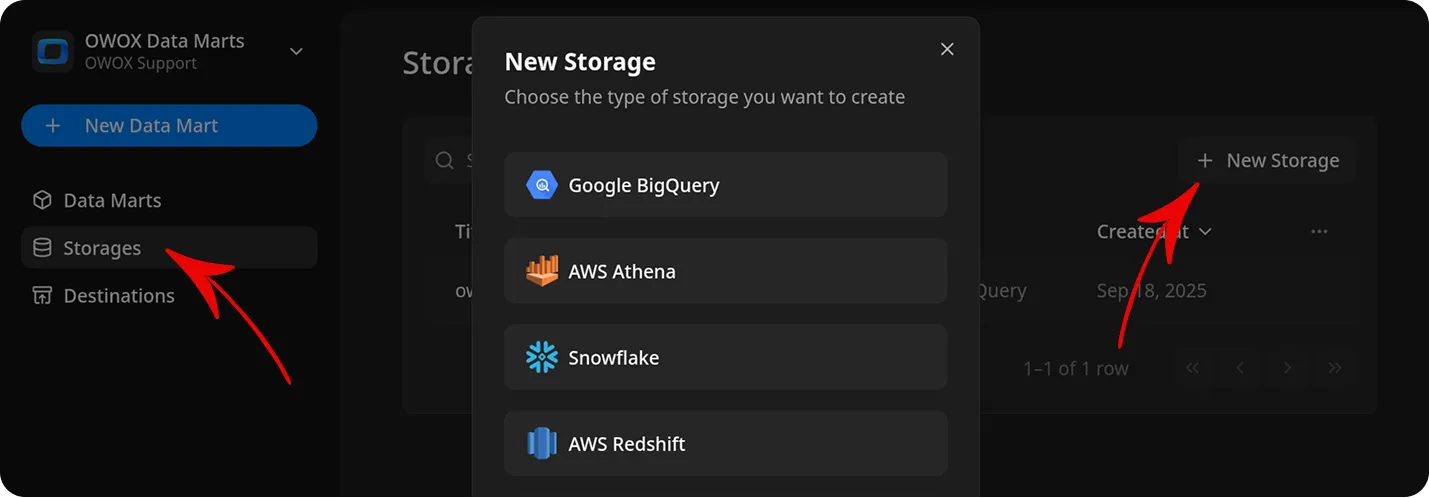
Dialog for creating new storage in OWOX Data Marts. The left sidebar highlights the Storages section. A modal window titled New Storage displays options to choose the type of storage to create: Google BigQuery, AWS Athena, Snowflake, and AWS Redshift. The wider environment is a dark-themed application interface with navigation and action buttons. The emotional tone is neutral and instructional.

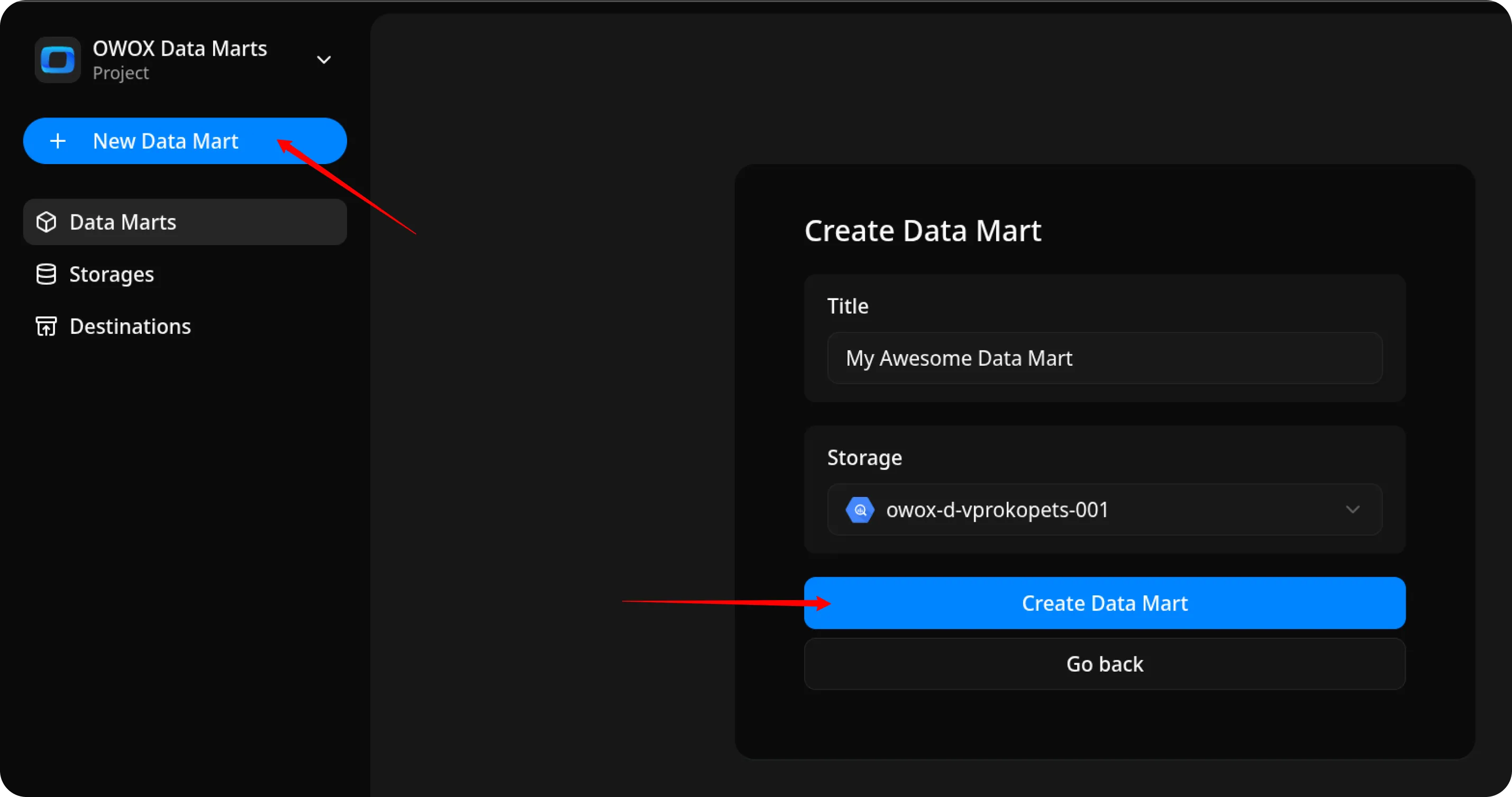
  • Click New Data Mart.
  • Enter a title and select the Storage.
  • Click Create Data Mart.

Button labeled New Data Mart is highlighted in the left sidebar of the OWOX Data Marts application. On the right, a modal titled Create Data Mart displays fields for Title and Storage, with the text My Awesome Data Mart entered in the Title field. A blue button labeled Create Data Mart is shown below these fields. The interface uses a dark theme with clear navigation and action buttons. The emotional tone is neutral and instructional.

  1. Select Connector as the input source type.
  2. Сhoose Shopify.
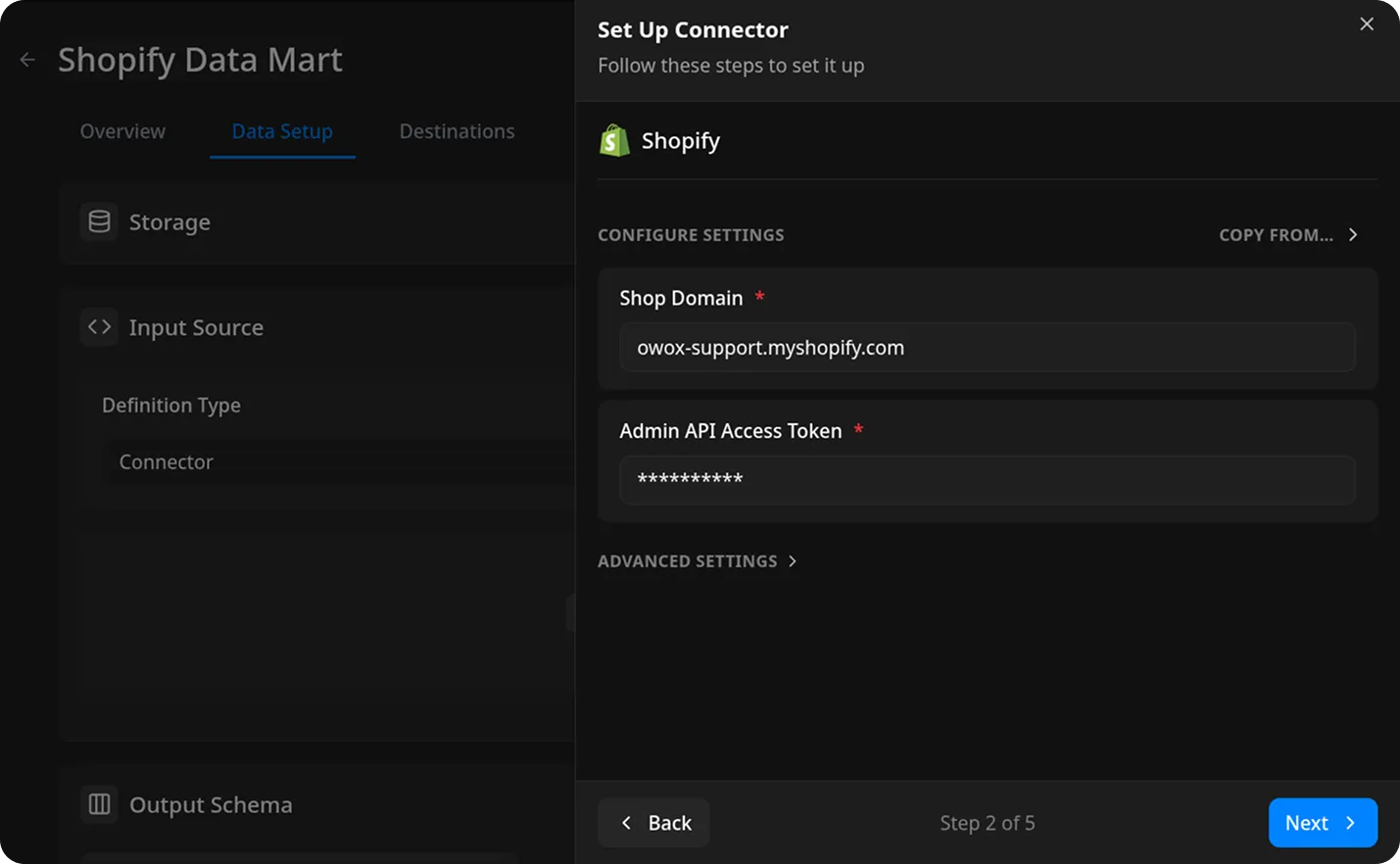
  3. Fill in the required fields:
    • Admin API Access Token – paste the token you generated during the CREDENTIALS step.
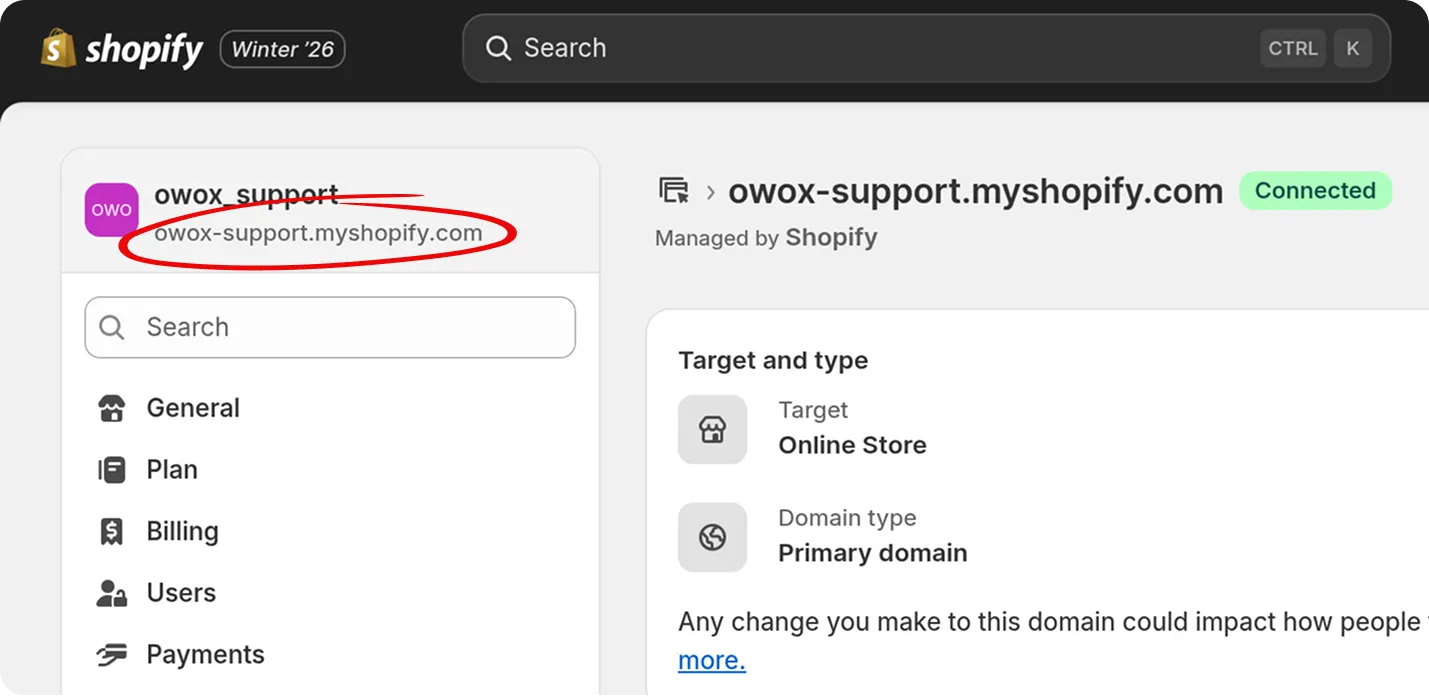
    • Shop Domain – you can find it in Shopify Admin page. For example, owox-support.myshopify.com.
    • Leave the other fields as default and proceed to the next step.
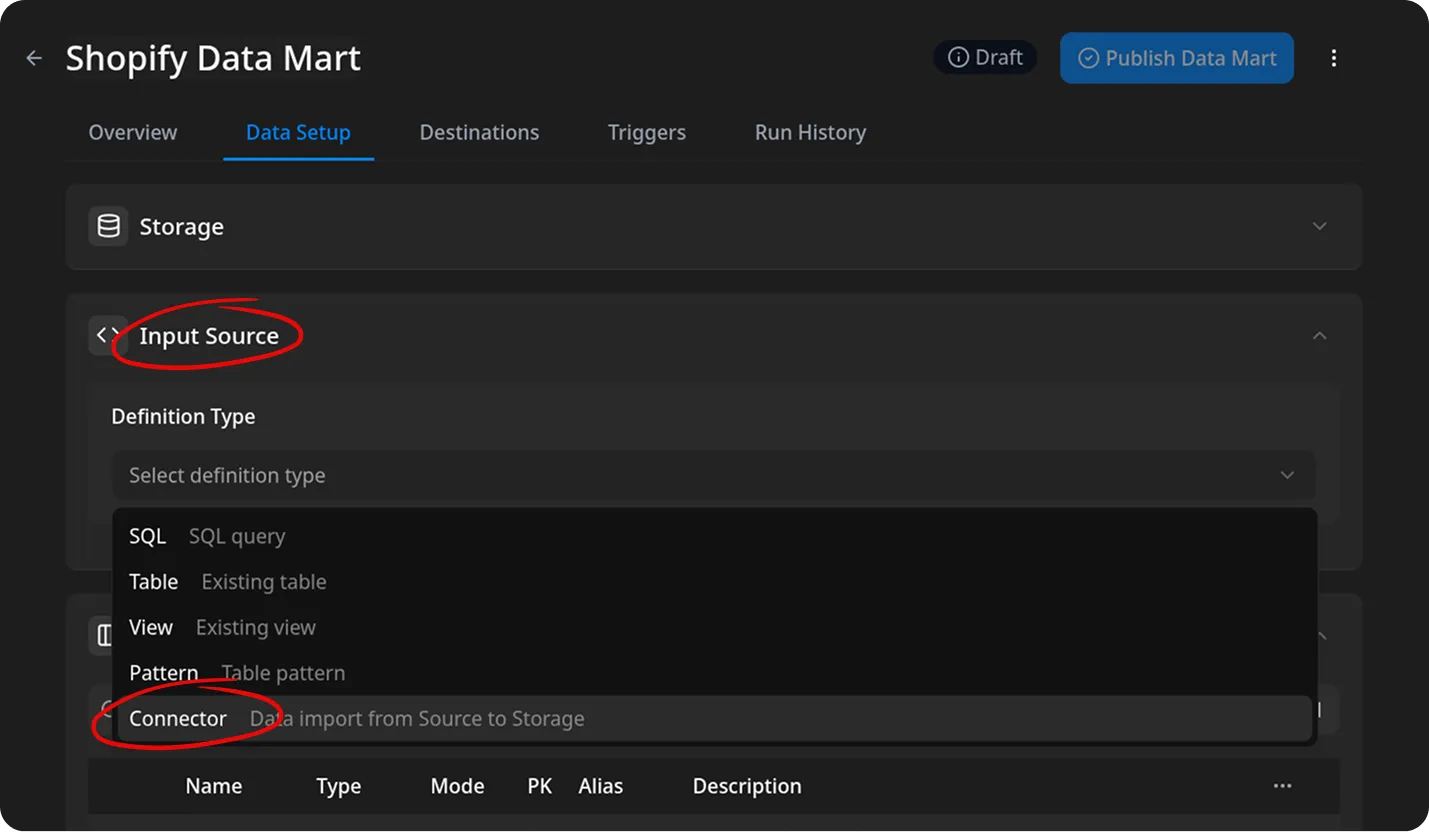
Shopify Data Mart Data Setup screen showing the Input Source section. A dropdown menu is open with options for definition type: SQL, Table, View, Pattern, and Connector. Connector is highlighted, indicating selection for data import from source to storage. The emotional tone is neutral and instructional.

Shopify Admin dashboard showing the store domain owox-support.myshopify.com circled in red. The left sidebar displays navigation options. The main panel shows the domain details. The interface uses a light theme with clear navigation and search bar at the top. The emotional tone is neutral and instructional.

Shopify Data Mart setup connector modal showing configuration fields for connecting to a Shopify store. The modal header reads Set Up Connector and provides step-by-step instructions. The Shopify logo is displayed. Two required fields are shown: Shop Domain with the value owox-support.myshopify.com and Admin API Access Token with masked characters. A Next button is highlighted in blue at the bottom right, and a Back button is at the bottom left. The wider environment is a dark-themed application interface with navigation tabs for Overview, Data Setup, and Destinations. The emotional tone is neutral and instructional.

  1. Choose one of the available endpoints.
  2. Select the required fields.
  3. Specify the dataset where the data will be stored, or leave it as default.
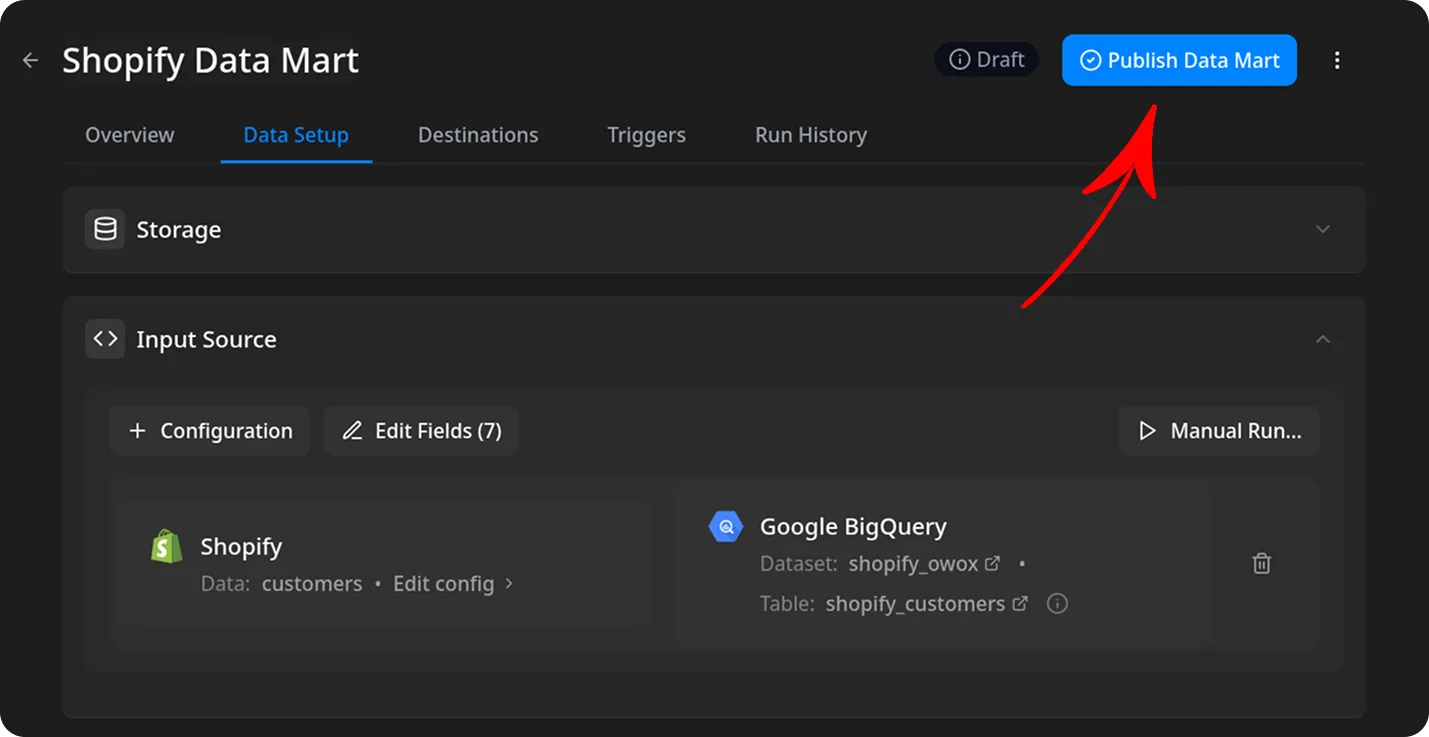
  4. Click Finish, then Publish Data Mart.

Button labeled Publish Data Mart is highlighted in blue at the top right of the Shopify Data Mart Data Setup screen. A red arrow points to the button, indicating the action to publish the data mart. The wider environment is a dark-themed application interface. The emotional tone is neutral and instructional.

Now you have two options for importing data from Shopify:

Option 1: Import Current Day’s Data

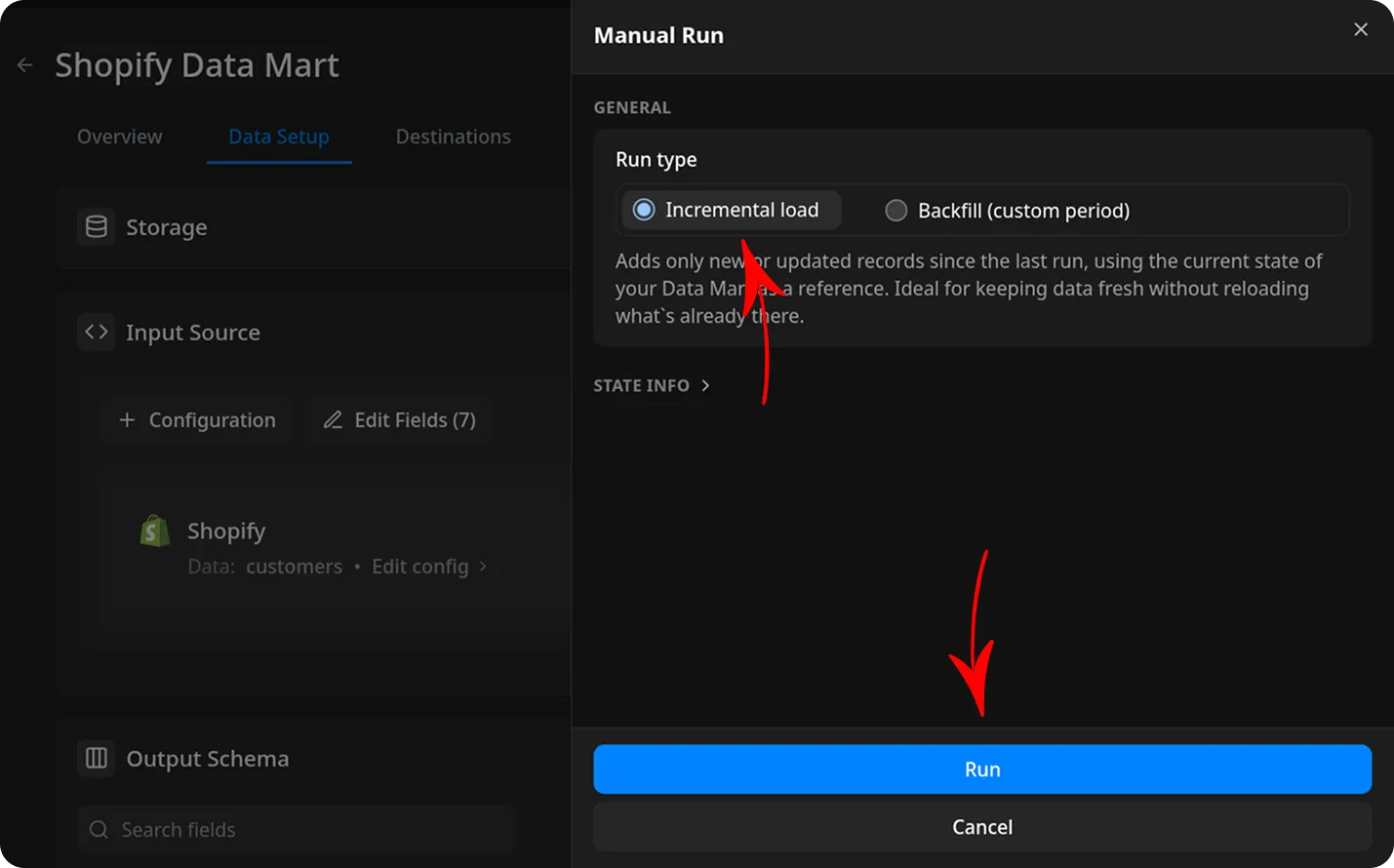
Choose Manual run → Incremental load to load data for the current day.
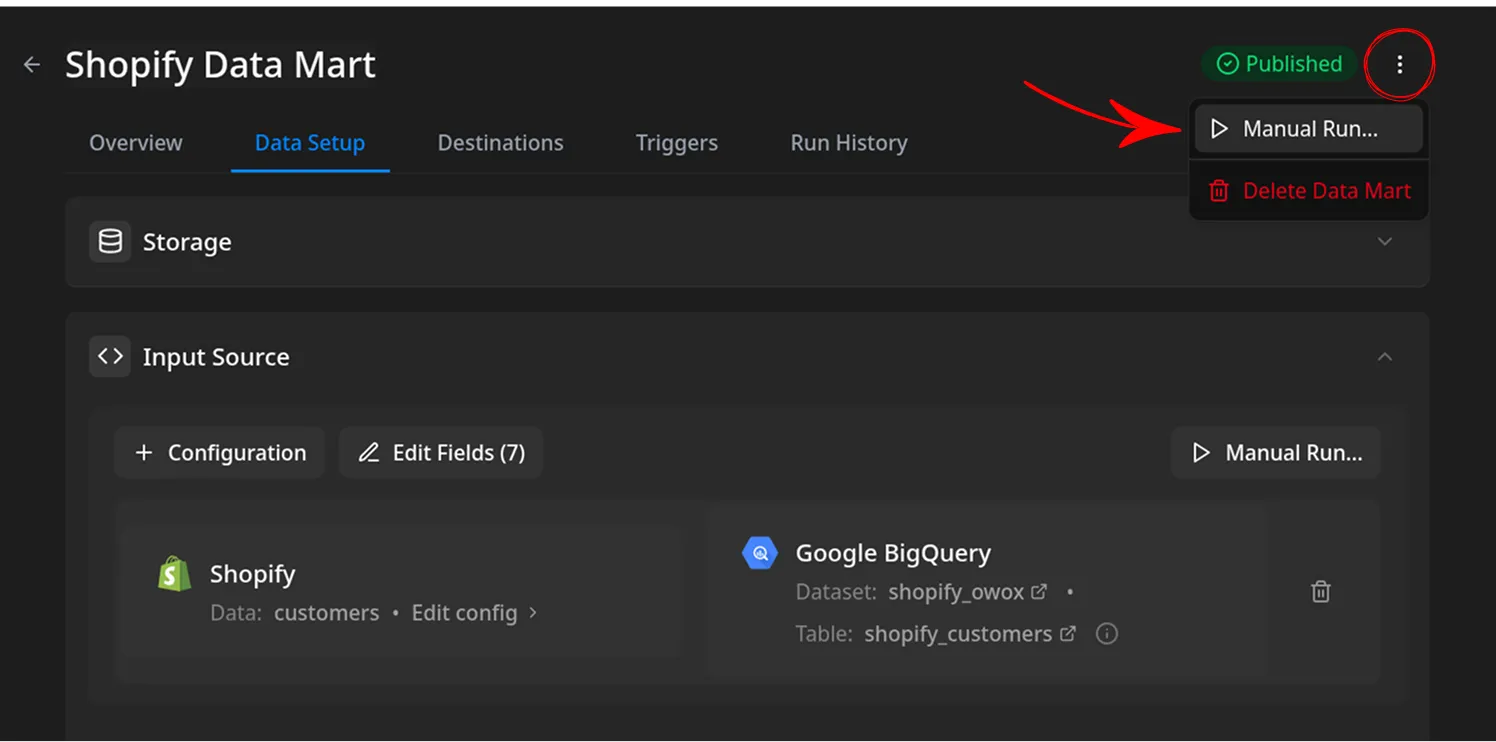
Shopify Data Mart manual run menu is open, showing two options: Manual Run and Delete Data Mart. Manual Run is highlighted, indicating the action to import new data. The wider environment is a dark-themed application interface with navigation tabs. The status indicator shows Published in green. The emotional tone is neutral and instructional.

Manual Run dialog in Shopify Data Mart showing Incremental load selected as the run type. The description reads: Adds only new or updated records since the last run, using the current state of your Data Mart as a reference. Ideal for keeping data fresh without reloading what is already there. A blue Run button is highlighted at the bottom of the modal. The wider environment is a dark-themed application interface with navigation tabs for Overview, Data Setup, and Destinations. The emotional tone is neutral and instructional.

ℹ️ If you click Incremental load again after a successful initial load,
the connector will import: Current day’s data, plus Additional days, based on the value in the Reimport Lookback Window field.
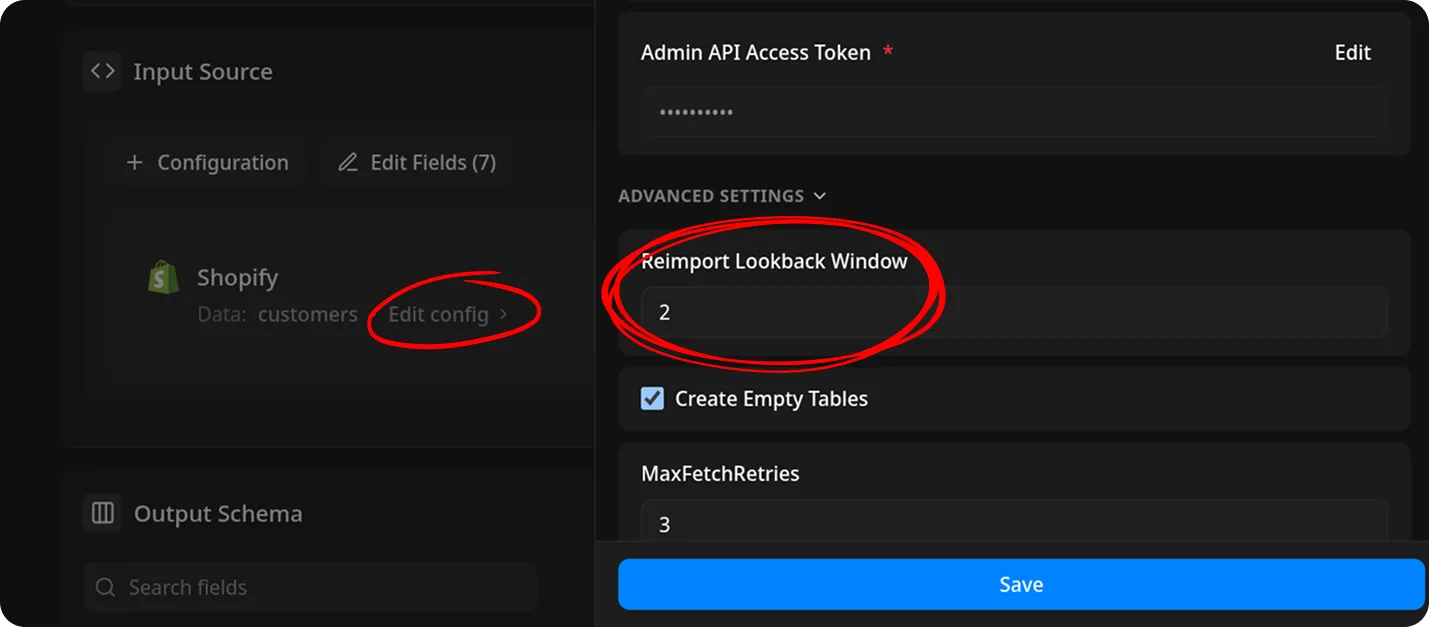
Shopify Data Mart connector configuration screen showing advanced settings for data import. The Reimport Lookback Window field is highlighted and set to 2. The left panel displays the Input Source section with Shopify selected and Edit config circled. The interface uses a dark theme with clear navigation and action buttons. The emotional tone is neutral and instructional.

Option 2: Manual Backfill for Specific Date Range

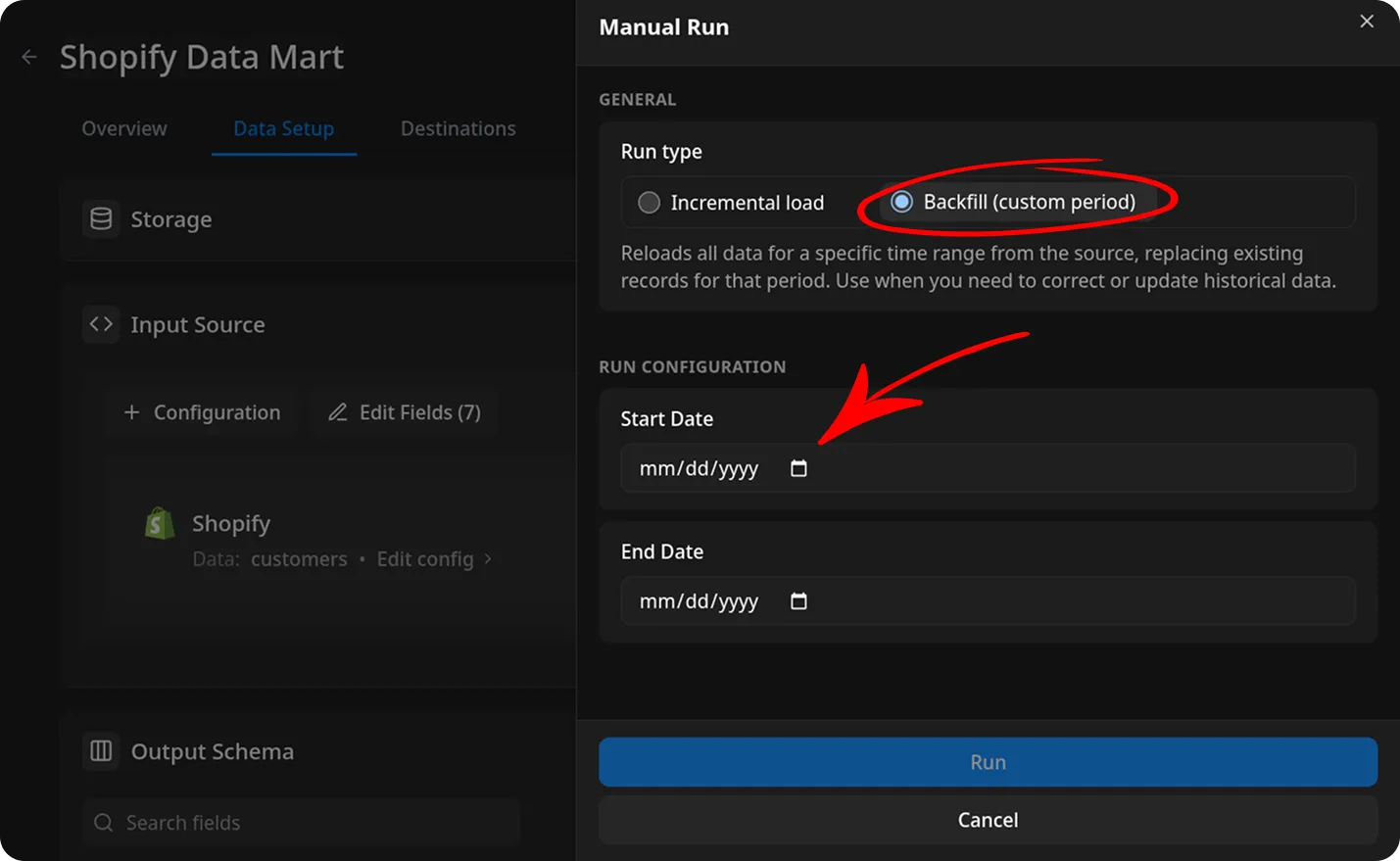
Choose Backfill (custom period) to load historical data for a custom time range.

  1. Select the Start Date and End Date
  2. Click the Run button

Manual Run dialog in Shopify Data Mart showing Backfill custom period selected as the run type. The dialog displays fields for Start Date and End Date, both empty, with a calendar icon next to each. Red circles and arrows highlight the Backfill custom period option and the Start Date field. The wider environment is a dark-themed application interface with navigation tabs. The emotional tone is neutral and instructional.

The process is complete when the Run history tab shows the message:
“Success”
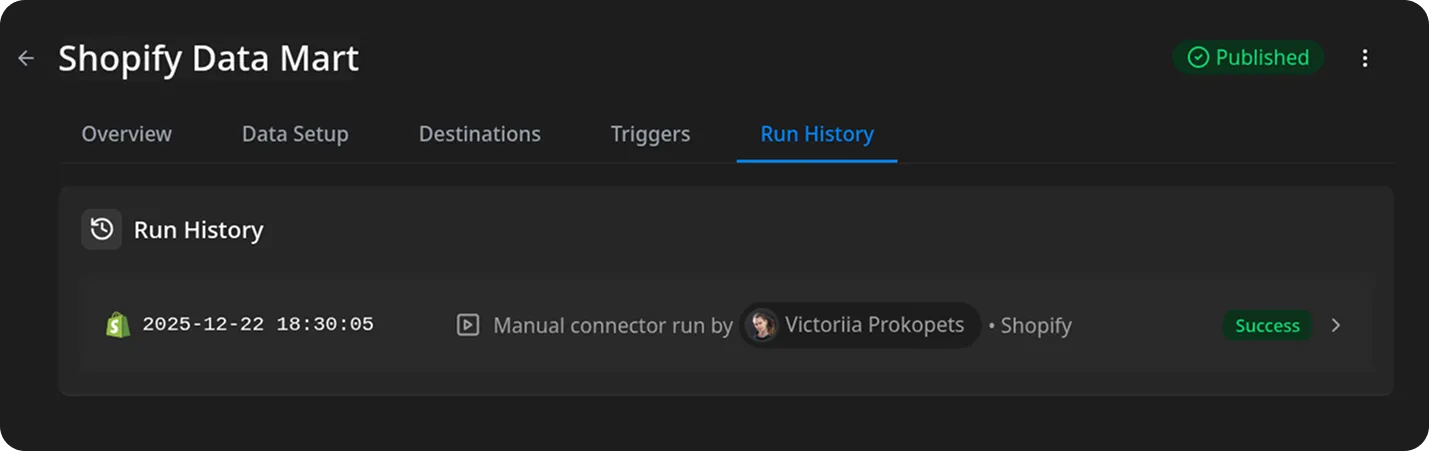
Shopify Data Mart Run History screen showing a successful manual connector run. The main panel displays a timestamp 2025-12-22 18:30:05, the connector type Shopify, and the user who ran it. A green Success status indicator is present. The navigation tabs at the top include Overview, Data Setup, Destinations, Triggers, and Run History, with Run History selected. The wider environment uses a dark theme with clear navigation and status indicators. The emotional tone is neutral and instructional. On-screen text includes: Shopify Data Mart, Run History, Manual connector run by, Success, Published.

The data will be written to the dataset specified earlier.

If you encounter any issues:

  1. Check the Run history for specific error messages
  2. Please visit Q&A first
  3. If you want to report a bug, please open an issue
  4. Join the discussion forum to ask questions or propose improvements