
How to Import Data from the Linkedin Ads Source
Before proceeding, please make sure that:
- You have created a refresh token (as described in CREDENTIALS) and securely saved your Client ID and Primary Client Secret.
- You have set up OWOX Data Marts and created at least one storage in the Storages section.
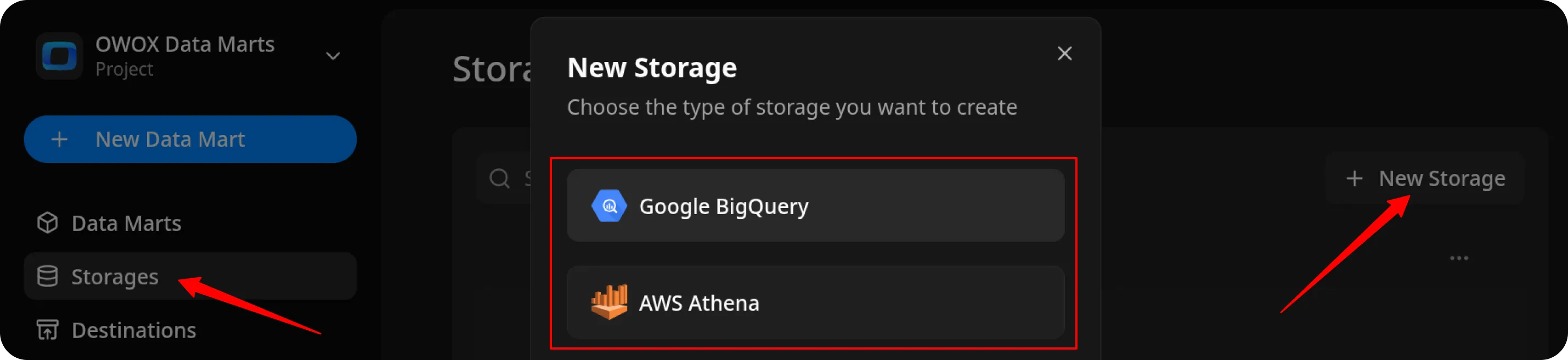
Create the Data Mart
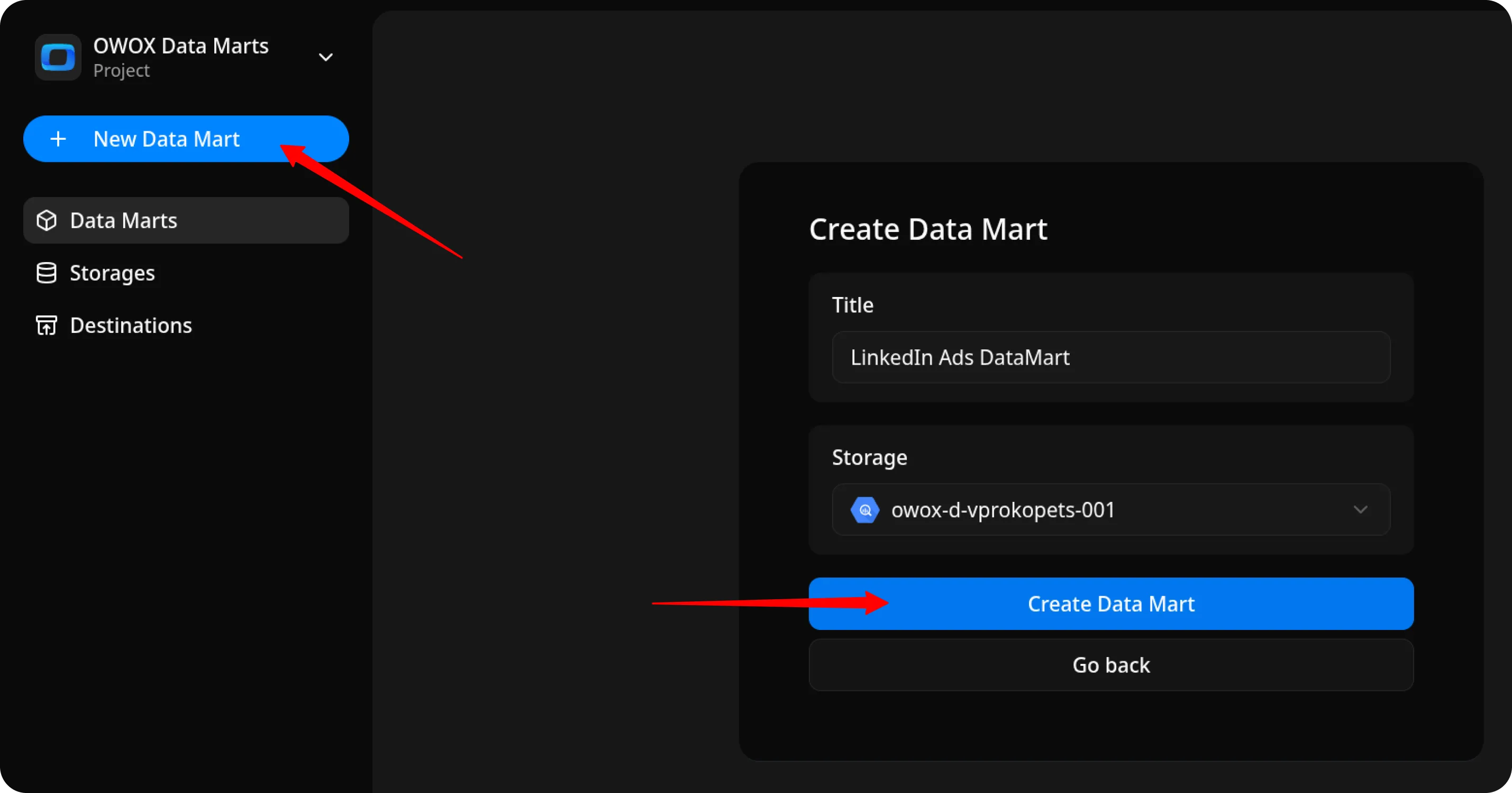
Section titled “Create the Data Mart”- Click New Data Mart.
- Enter a title and select the Storage.
- Click Create Data Mart.
Set Up the Connector
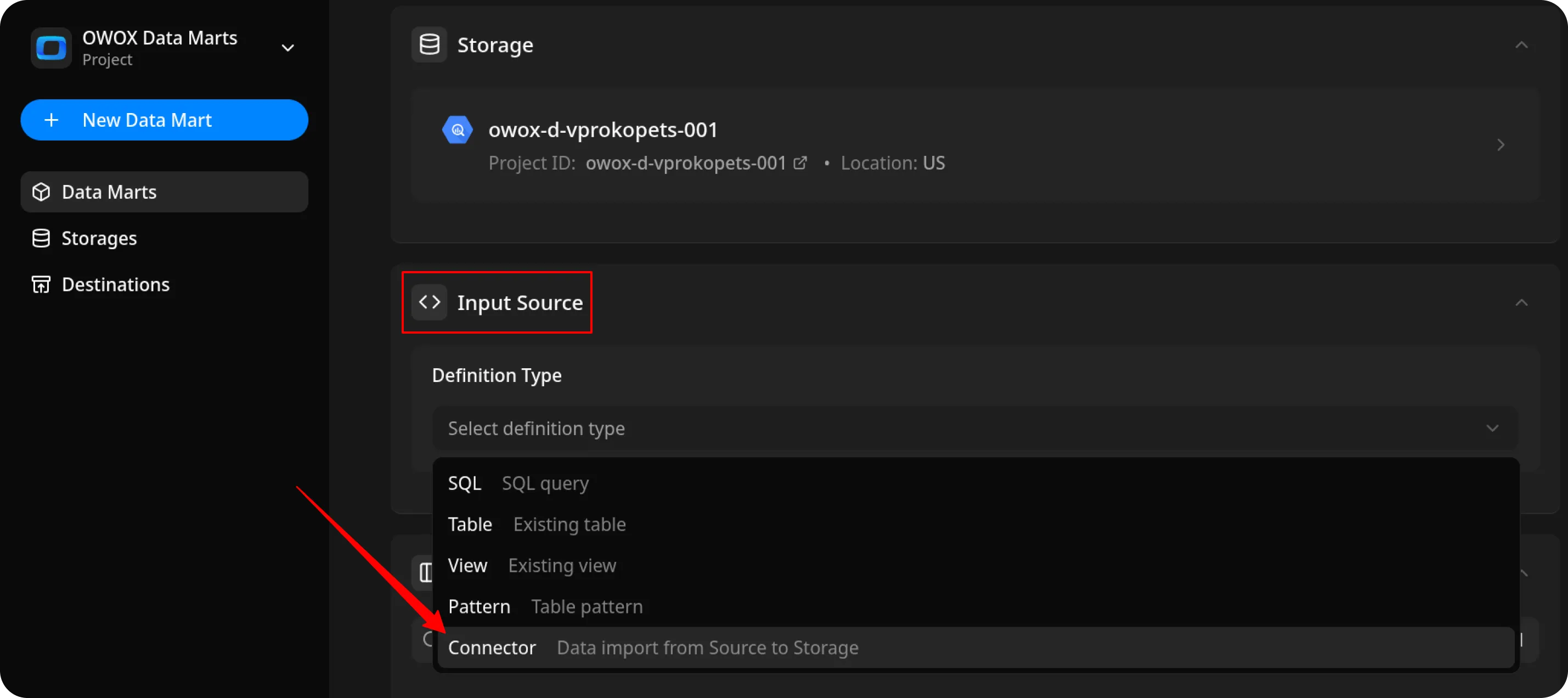
Section titled “Set Up the Connector”- Select Connector as the input source type.
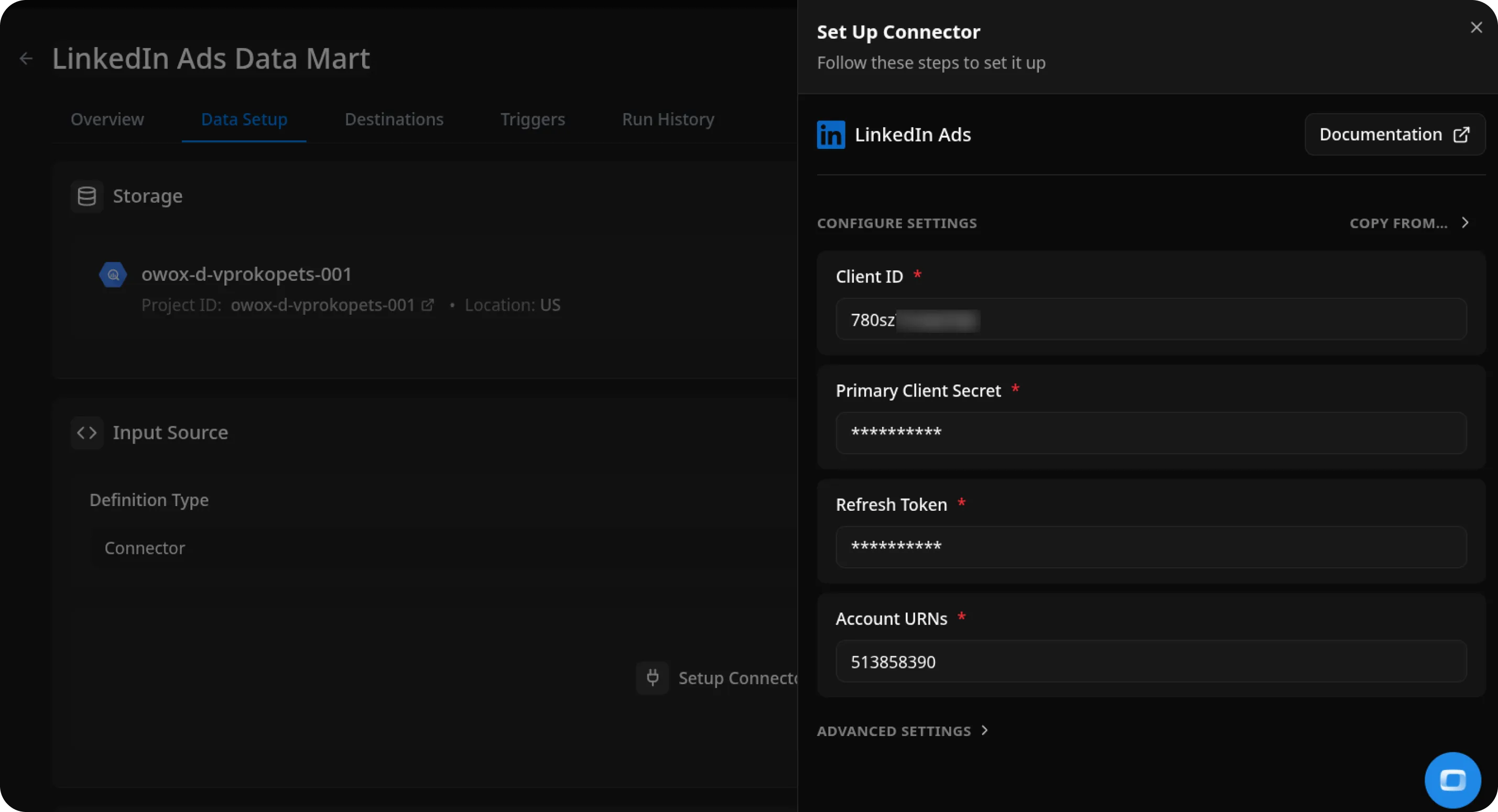
- Click Set up connector and choose LinkedIn Ads.
- Fill in the required fields:
- Client ID – paste the ID you saved earlier.
- Primary Client Secret – paste the secret you saved earlier.
- Refresh Token – paste the token you created following the CREDENTIALS tutorial.
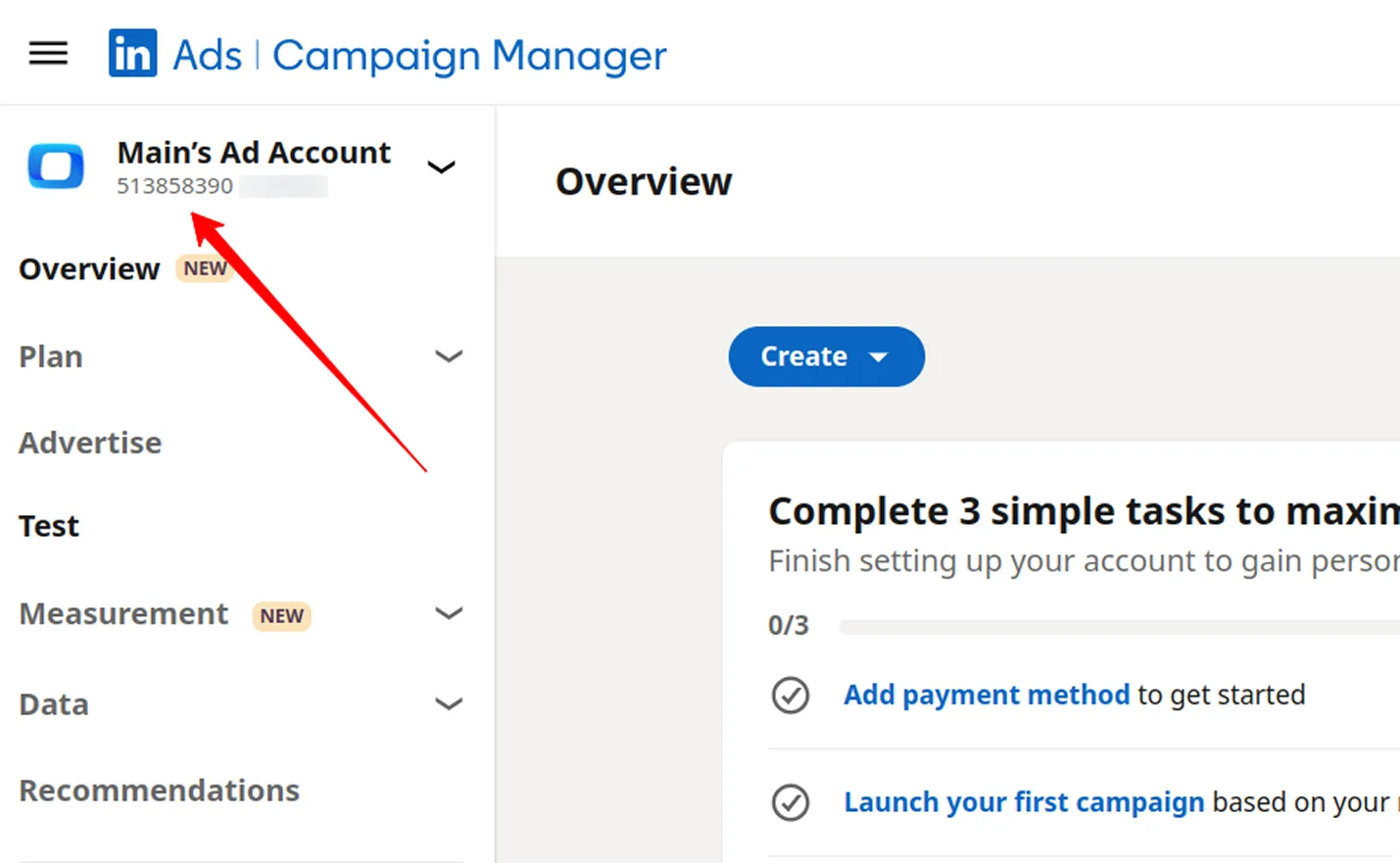
- Account URNs – you can find this value on your LinkedIn Campaign Manager.
- Leave the other fields as default and proceed to the next step.
Configure Data Import
Section titled “Configure Data Import”- Choose one of the available endpoints.
- Select the required fields.
- Specify the dataset where the data will be stored (or leave the default).
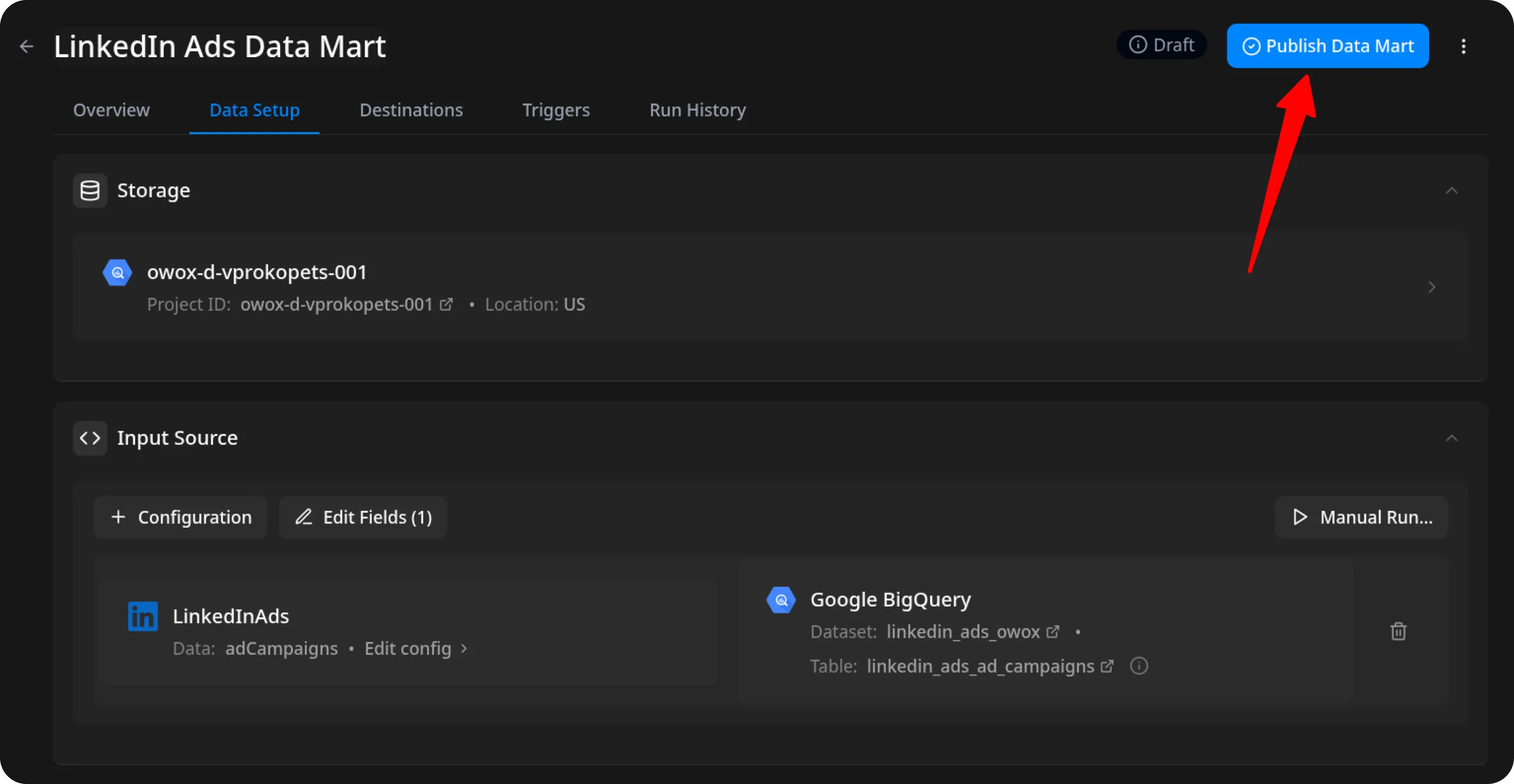
- Click Save, then Publish & Run Data Mart. Publishing starts the first import automatically.
Run the Data Mart
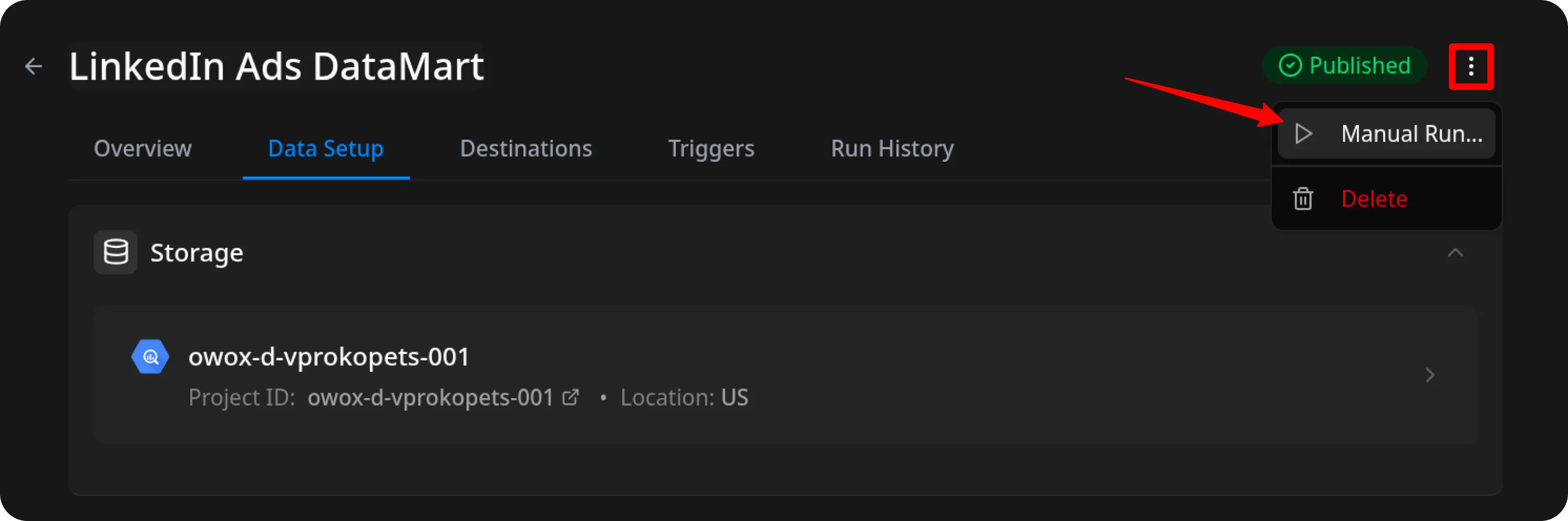
Section titled “Run the Data Mart”Publish & Run Data Mart already started the first import. To import data again, you have two options:
Option 1: Import Current Day’s Data
Choose Manual run → Incremental load to load data for the current day.
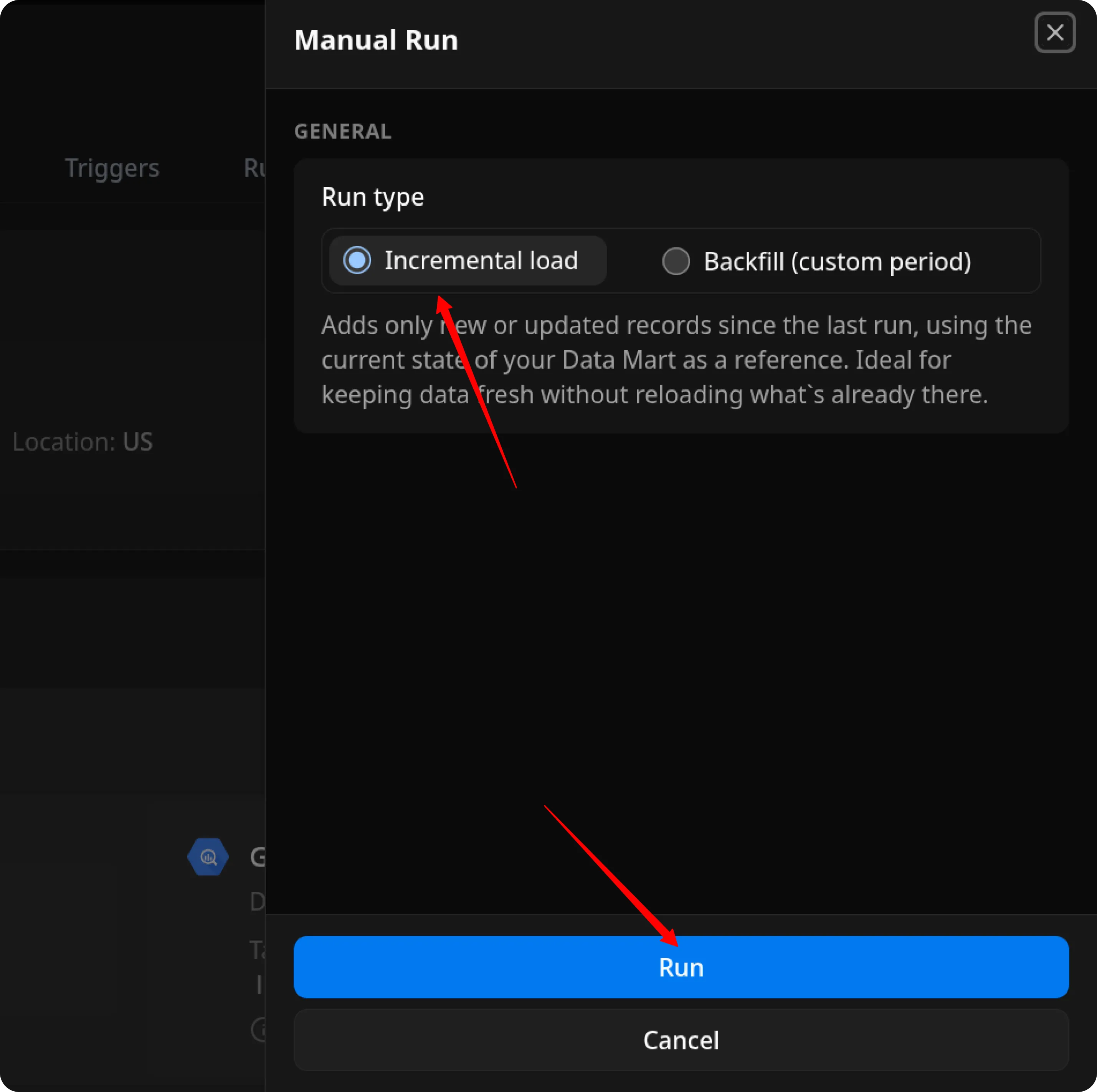
ℹ️ If you click Incremental load again after a successful initial load,
the connector will import: Current day’s data, plus Additional days, based on the value in the Reimport Lookback Window field.
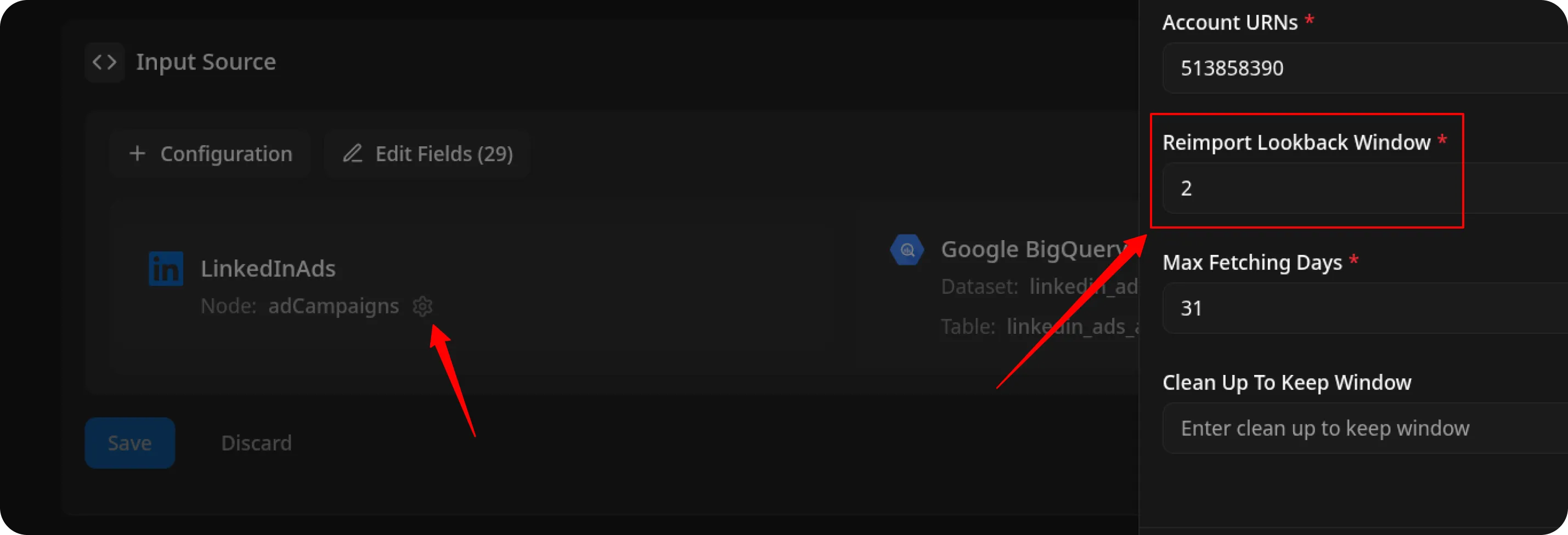
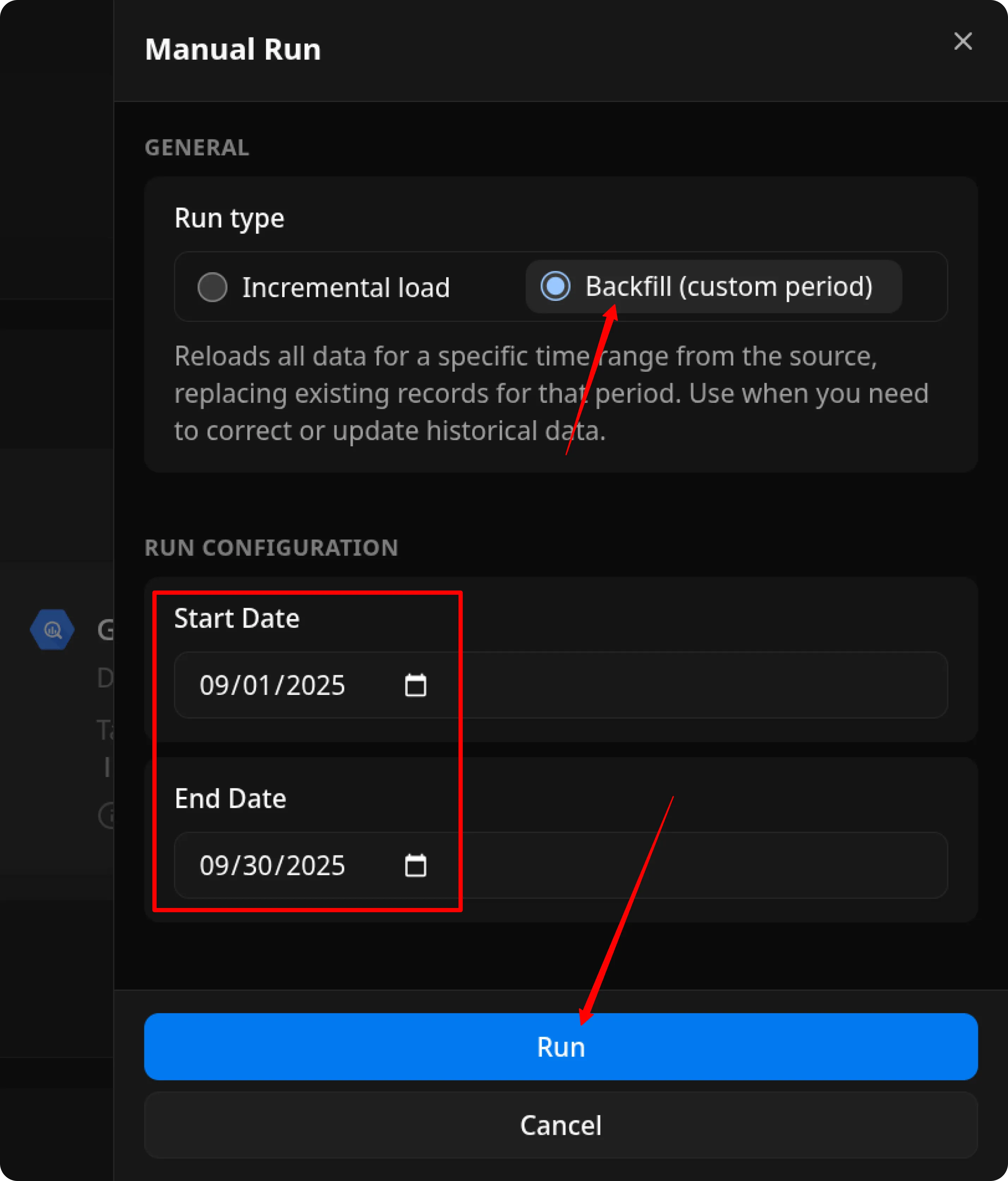
Option 2: Manual Backfill for Specific Date Range
Choose Backfill (custom period) to load historical data.
- Select the Start Date and End Date.
- Click the Run button.
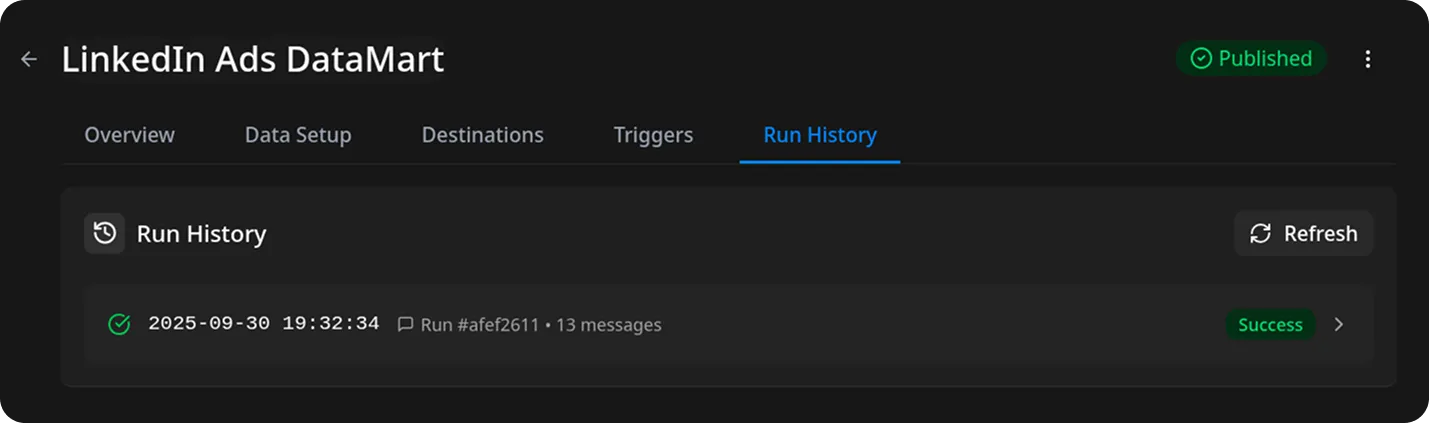
The process is complete when the Run history tab shows the message:
“Success”
Why does my Ad Analytics run finish with a Warning status?
Section titled “Why does my Ad Analytics run finish with a Warning status?”LinkedIn’s adAnalytics endpoint does not support pagination and caps each response at 15,000 rows. To avoid silently losing data on long date ranges, the connector fetches analytics one day at a time. A single day can still exceed the limit, for example an account with more than 15,000 active creatives. The run then finishes with a Warning status and lists the affected days in the log. Data for those days may be incomplete.
Access Your Data
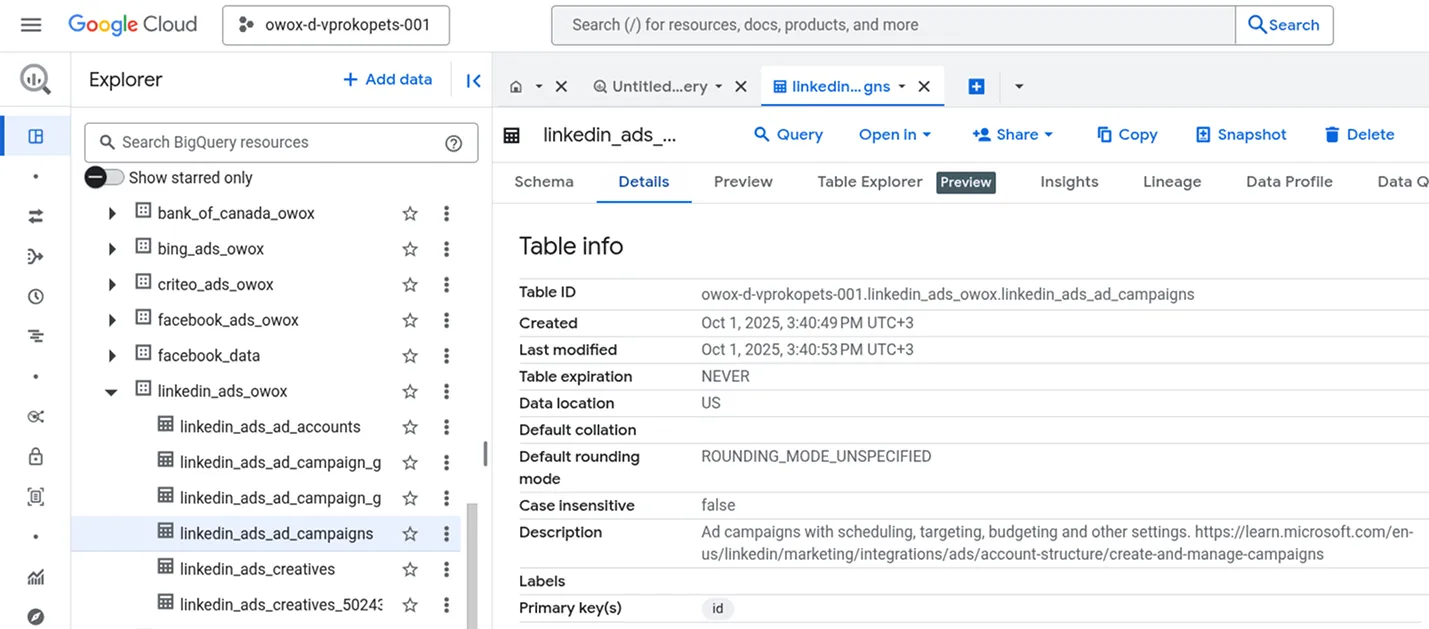
Section titled “Access Your Data”Once the run is complete, the data will be written to the dataset you specified earlier.
If you encounter any issues:
- Check the Run history for specific error messages
- Please visit Q&A first
- If you want to report a bug, please open an issue
- Join the discussion forum to ask questions or propose improvements