
How to Import Data from the Microsoft Ads Source
Before you begin, please ensure that:
- You have already obtained all required credentials, as described in CREDENTIALS.
- You have set up OWOX Data Marts and created at least one storage in the Storages section.
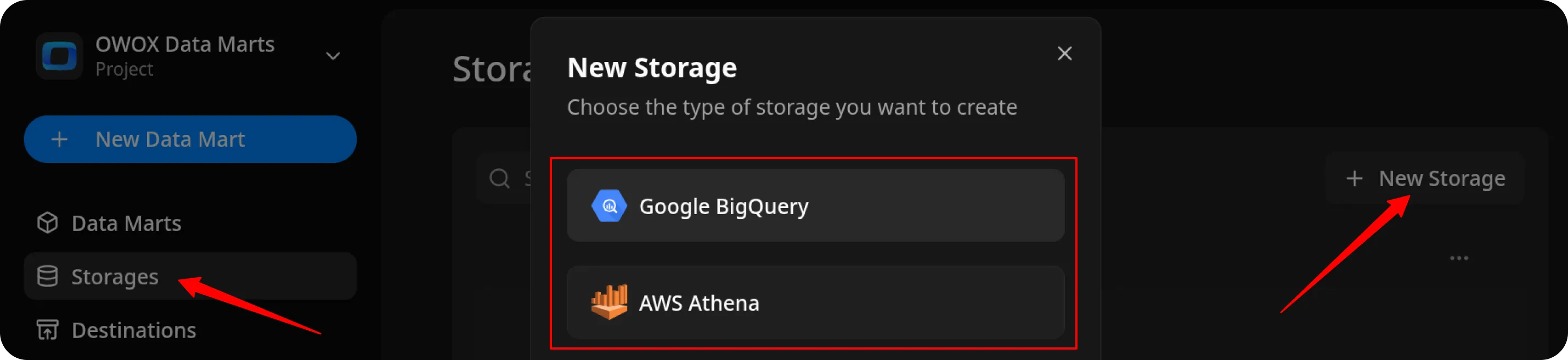
Create the Data Mart
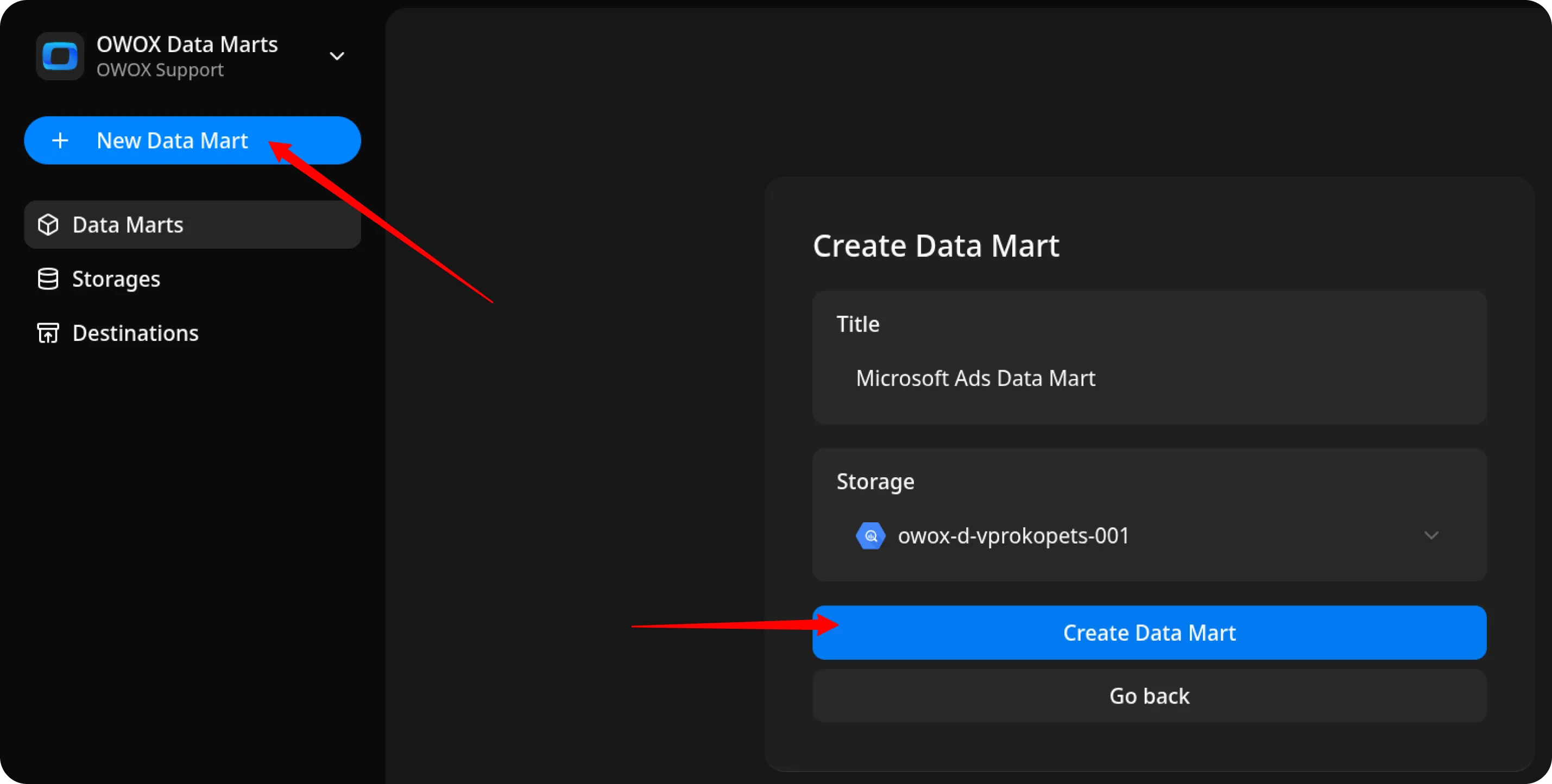
Section titled “Create the Data Mart”- Click New Data Mart.
- Enter a title and select the Storage.
- Click Create Data Mart.
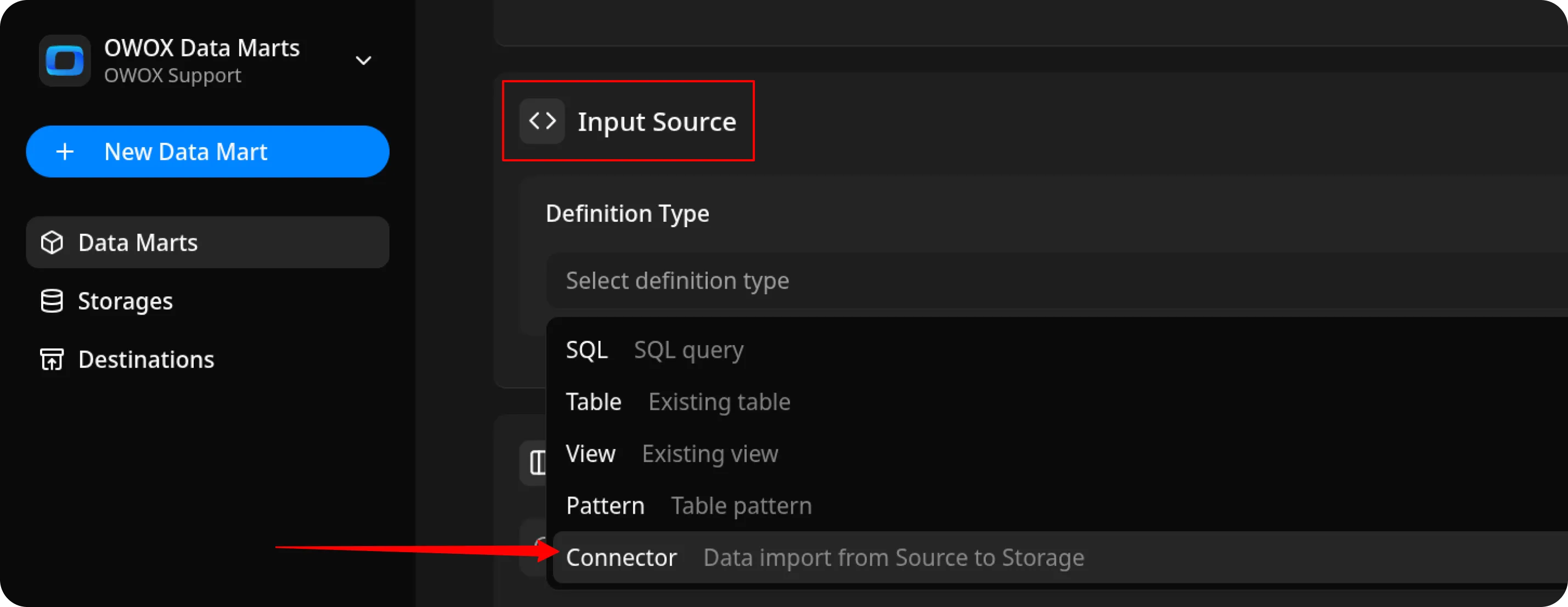
- Select Connector as the input source type.
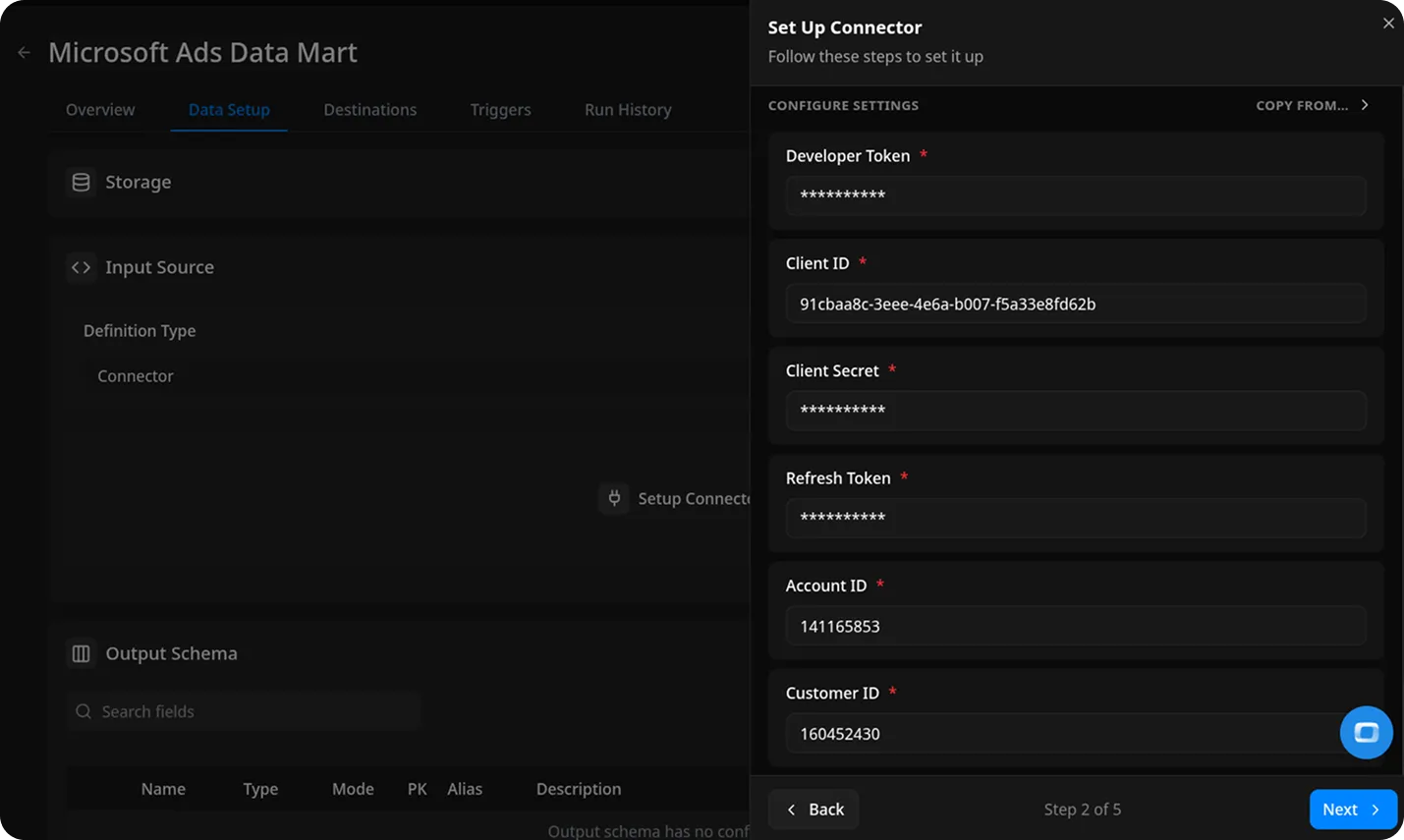
- Click Set up connector and choose Microsoft Ads.
- Fill in the required fields with the credentials you obtained in the CREDENTIALS guide.
- Leave the other fields as default.
- Proceed to the next step.
Configure Data Import
Section titled “Configure Data Import”- Choose one of the available endpoints.
- To import spend, clicks, and impressions from an ad account, select the
Microsoft Ads Campaignsendpoint.
- To import spend, clicks, and impressions from an ad account, select the
- Select the required fields.
- Specify the dataset where the data will be stored (or leave the default).
- Click Save, then Publish & Run Data Mart. Publishing starts the first import automatically.
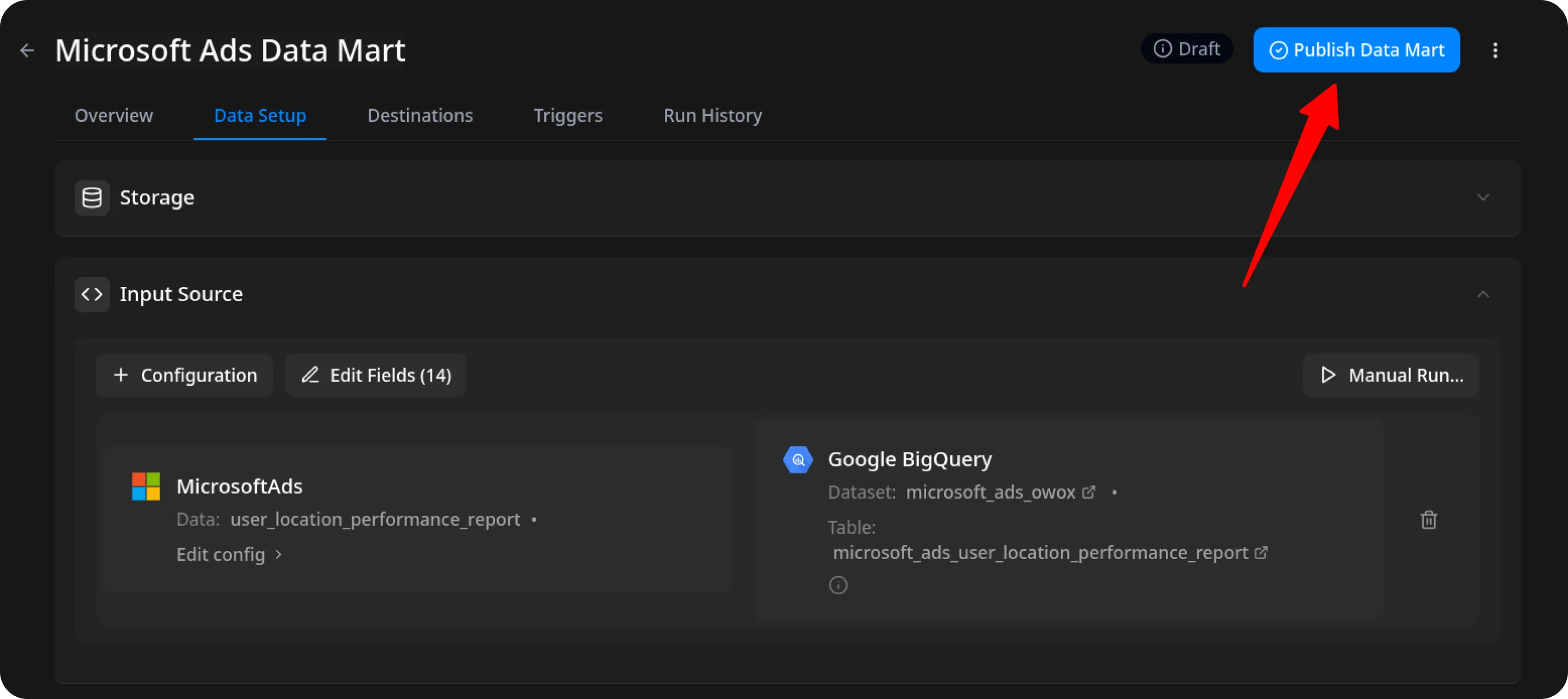
Resolve Short Links
Section titled “Resolve Short Links”Ads often point to short links. OWOX can follow each short link and store its target next to it:
- Ad Performance Report:
FinalUrl,FinalMobileUrlandDestinationUrlresolve intoFinalUrlParsed,FinalMobileUrlParsedandDestinationUrlParsed. - Campaigns:
FinalUrlandMobileFinalUrlresolve intoFinalUrlParsedandMobileFinalUrlParsed.
Keep the source field and its parsed field selected and enable Process Short Links under Advanced settings. OWOX selects FinalUrl and FinalUrlParsed on the Ad Performance Report by default. A parsed field holds the address the short link service points to, and the original value for other links. OWOX does not request that address, so redirects on the landing site itself are not followed.
OWOX resolves links from known short link services, such as Bitly (bit.ly) and TinyURL (tinyurl.com). Links on other domains stay unchanged. Your administrator adds your own short link domains to the CONNECTOR_SHORT_LINK_DOMAINS environment variable. In OWOX Cloud, contact support to add a domain. See Environment Variables.
OWOX sends one request per distinct link and remembers the answer for 30 days, including links that do not redirect. Later runs skip remembered links. If a Data Mart has more distinct links than the memory holds, OWOX requests the extra ones on each run.
Campaigns rows get the parsed field on the next run, because every run re-imports them. For Ad Performance Report, rows imported earlier keep their old values until you run a backfill.
Run the Data Mart
Section titled “Run the Data Mart”Publish & Run Data Mart already started the first import. To import data again, you have two options:
Option 1: Import Current Day’s Data
Choose Manual run → Incremental load to load data for the current day.
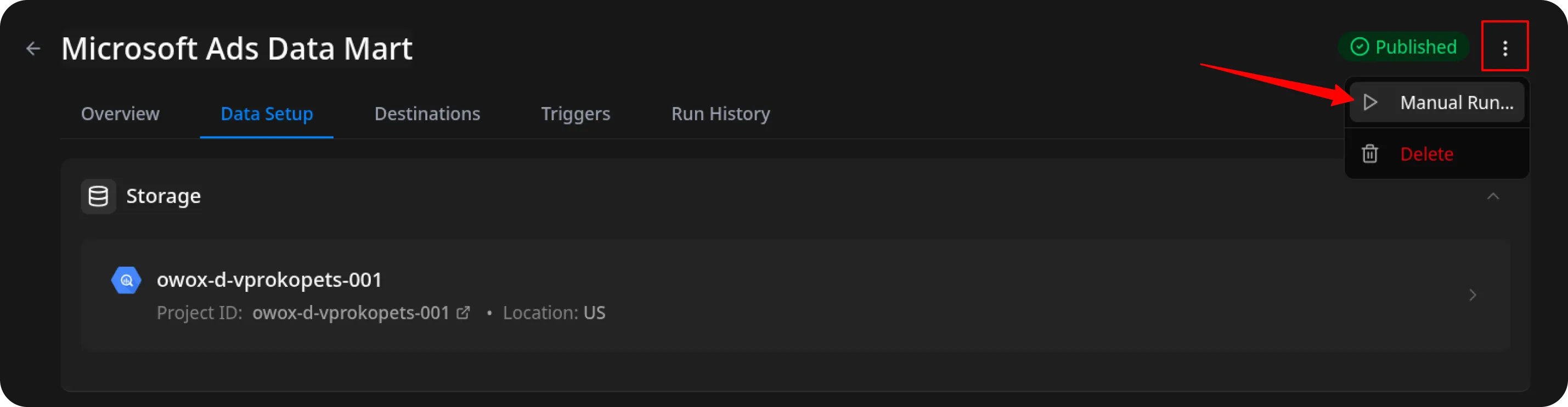
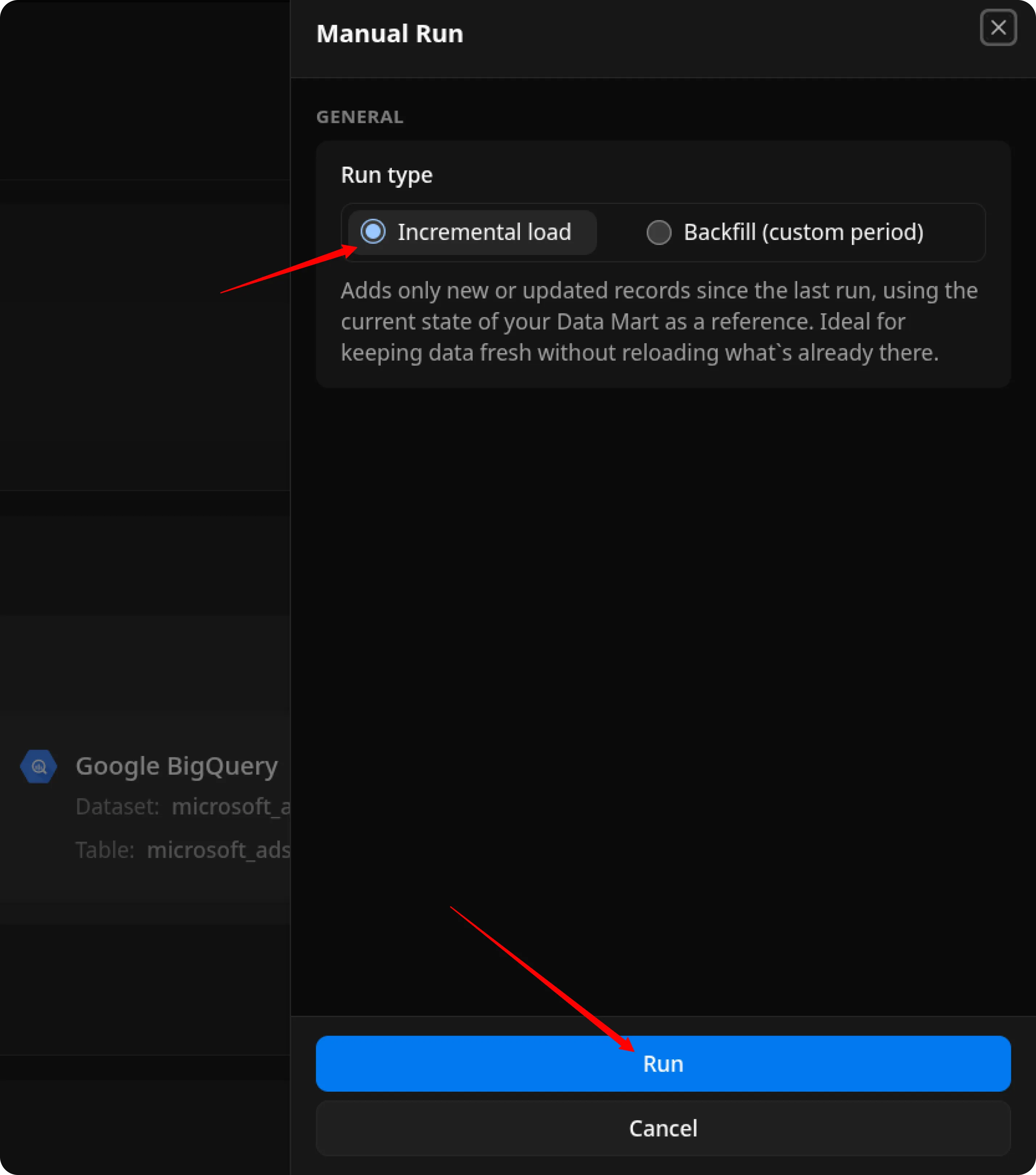
ℹ️ If you click Incremental load again after a successful initial load,
the connector will import: Current day’s data, plus Additional days, based on the value in the Reimport Lookback Window field.
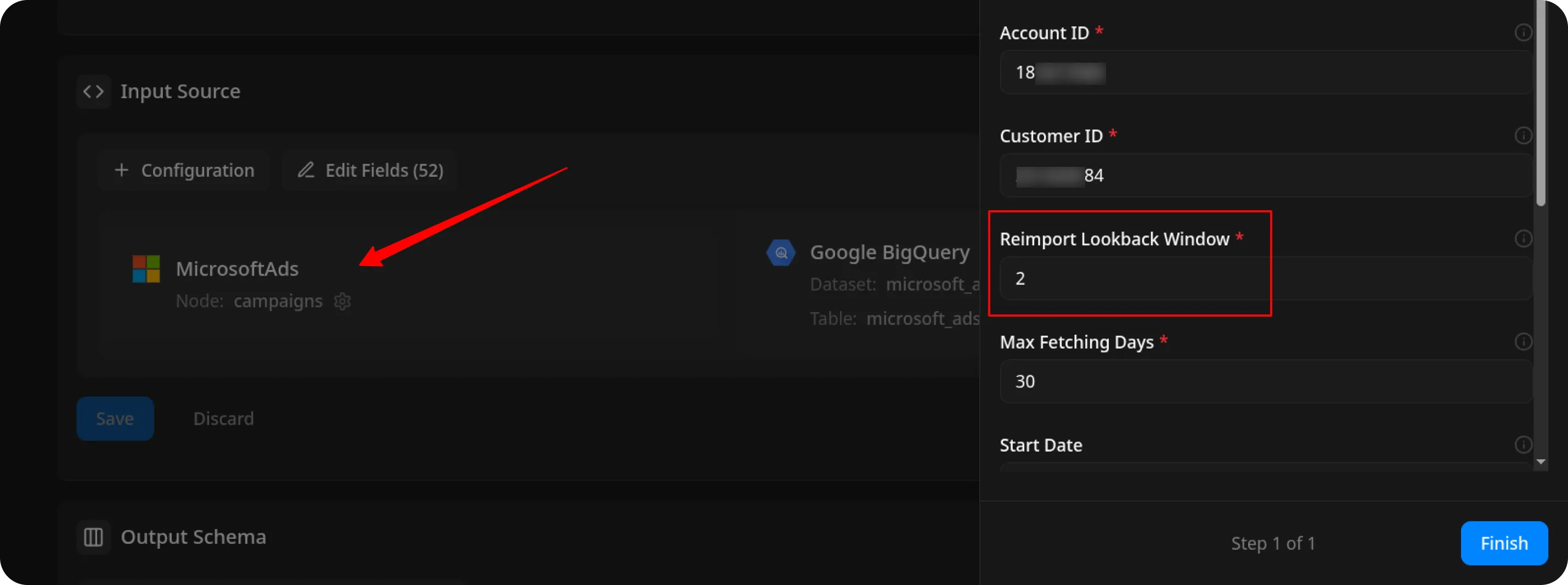
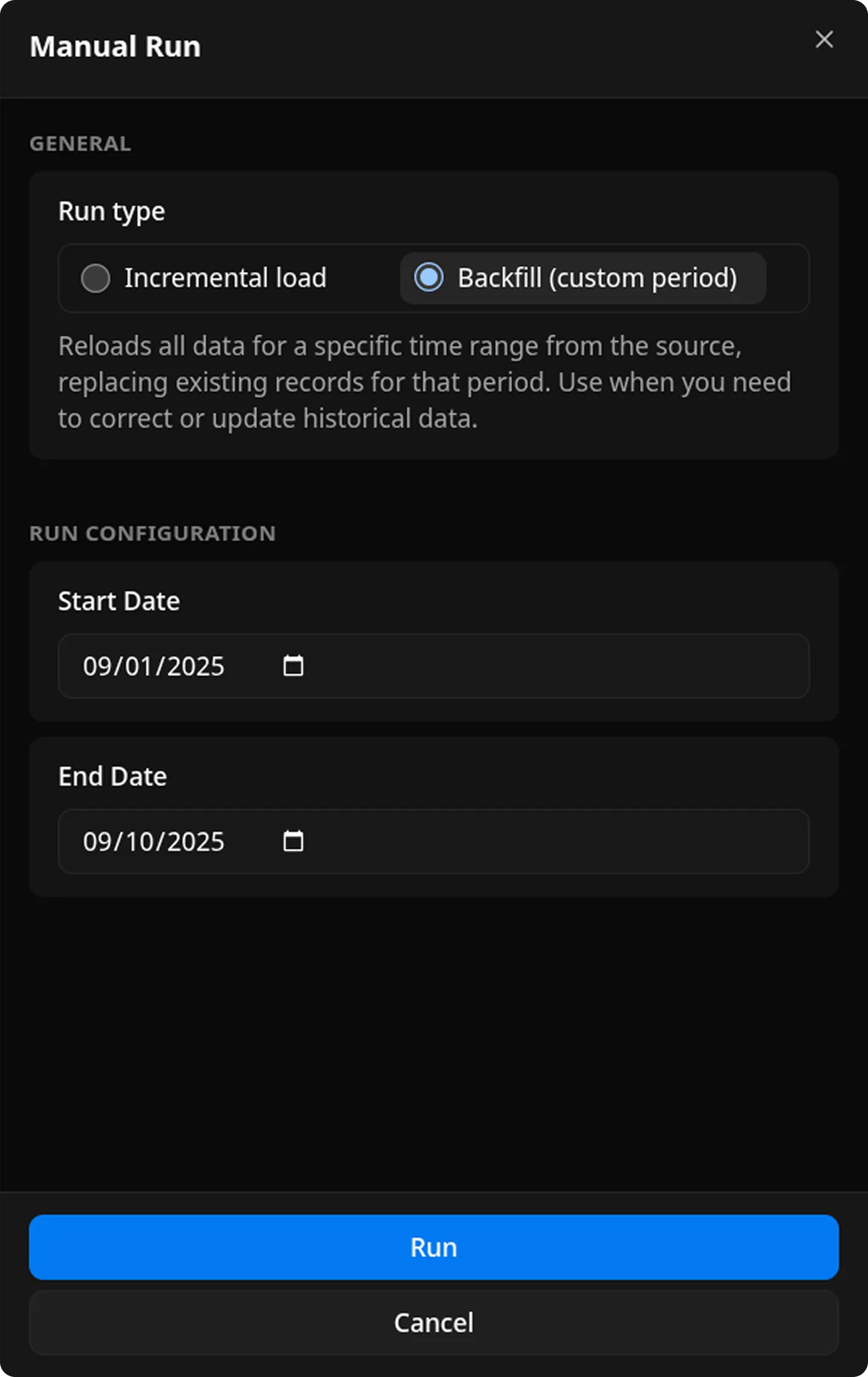
Option 2: Manual Backfill for Specific Date Range
- Choose Backfill (custom period) to load historical data.
- Select the Start Date and End Date.
- Click Run.
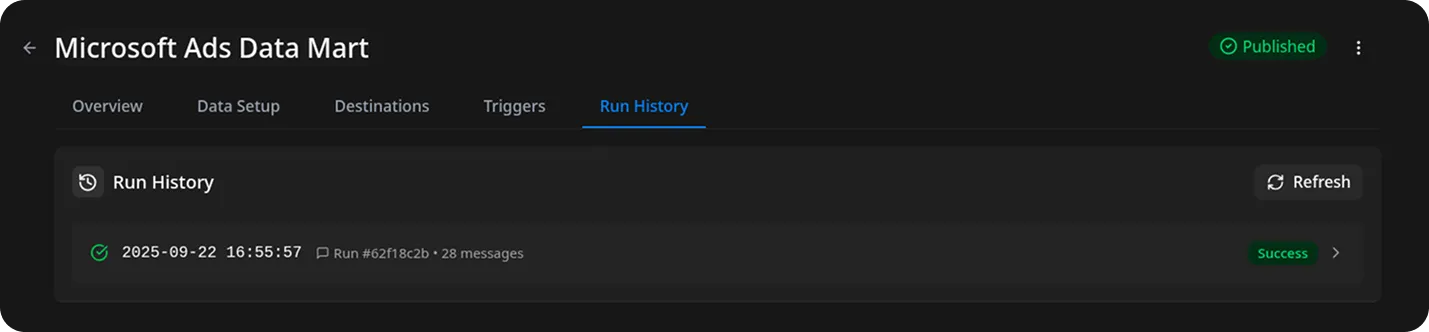
The process is complete when the Run history tab shows the message: “Success”
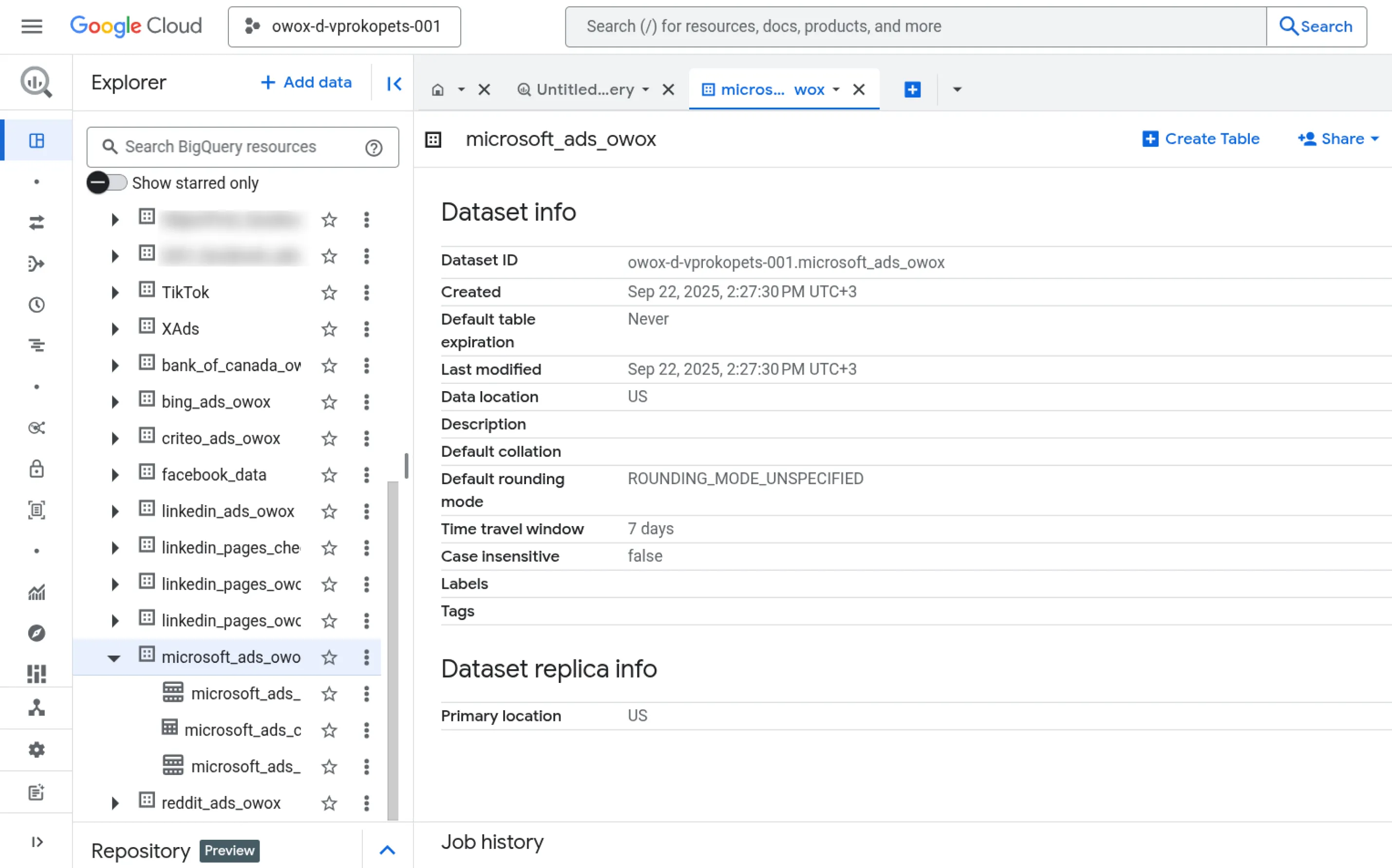
Access Your Data
Section titled “Access Your Data”Once the run is complete, the data will be written to the dataset you specified earlier.
If you encounter any issues:
- Check the Run history for specific error messages
- Please visit Q&A first
- If you want to report a bug, please open an issue
- Join the discussion forum to ask questions or propose improvements