
How to obtain the credentials for the Criteo source
To connect to the Criteo API, follow the steps below to create an app and generate the necessary credentials.
Go to https://partners.criteo.com and log in with your Criteo account.
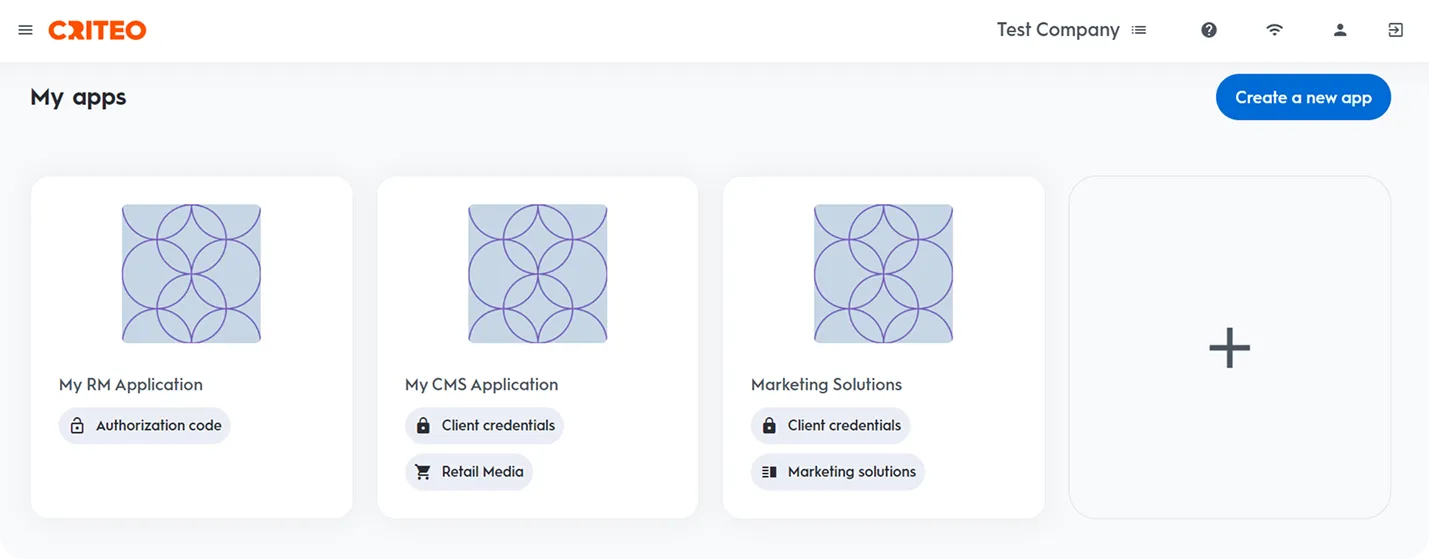
Create a new app by clicking the ➕ icon in the My Apps section or by pressing the Create a new app button.
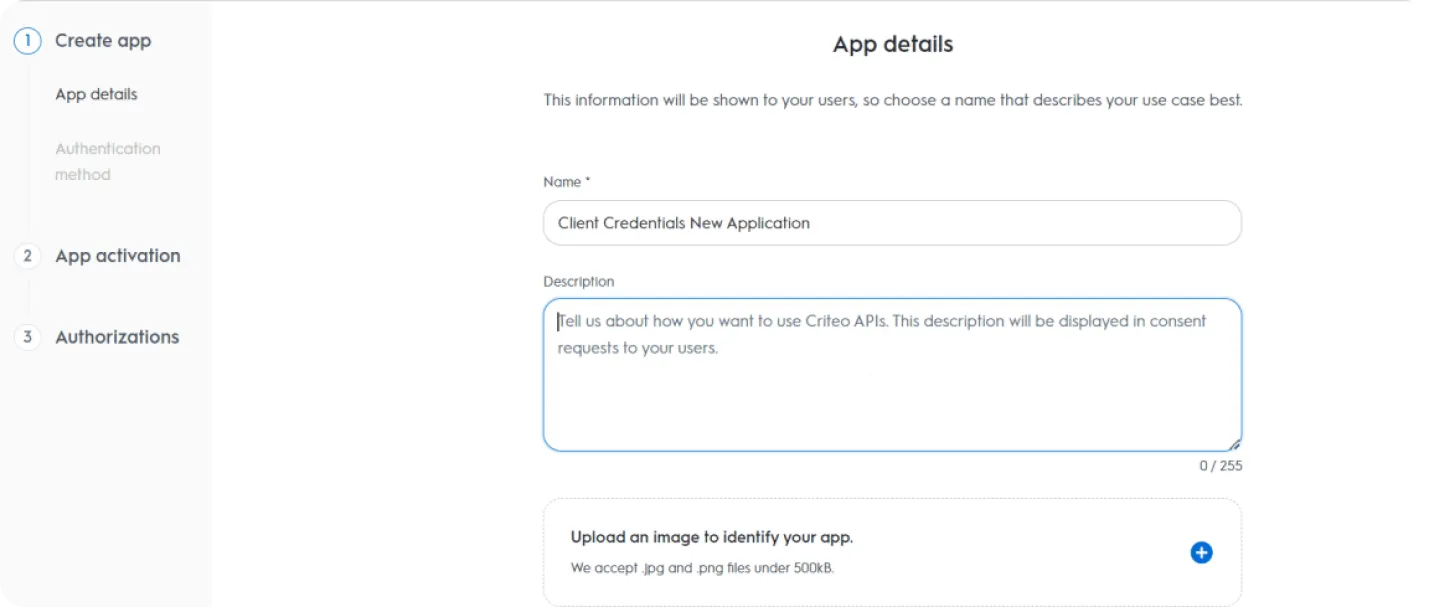
Enter a descriptive Application Name (e.g., OWOX Data Marts).
📌 It’s recommended to use a clearly identifiable name to simplify future troubleshooting.
Optionally, add a description. Click Next.
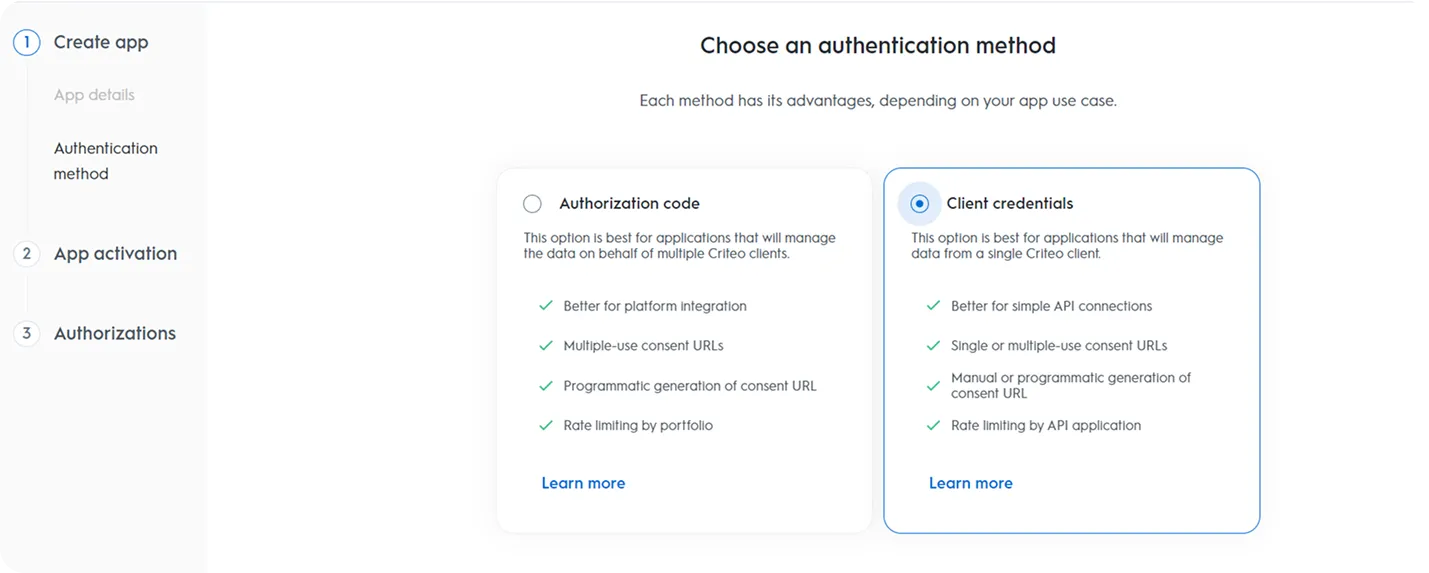
Select Client Credentials as the authentication method.
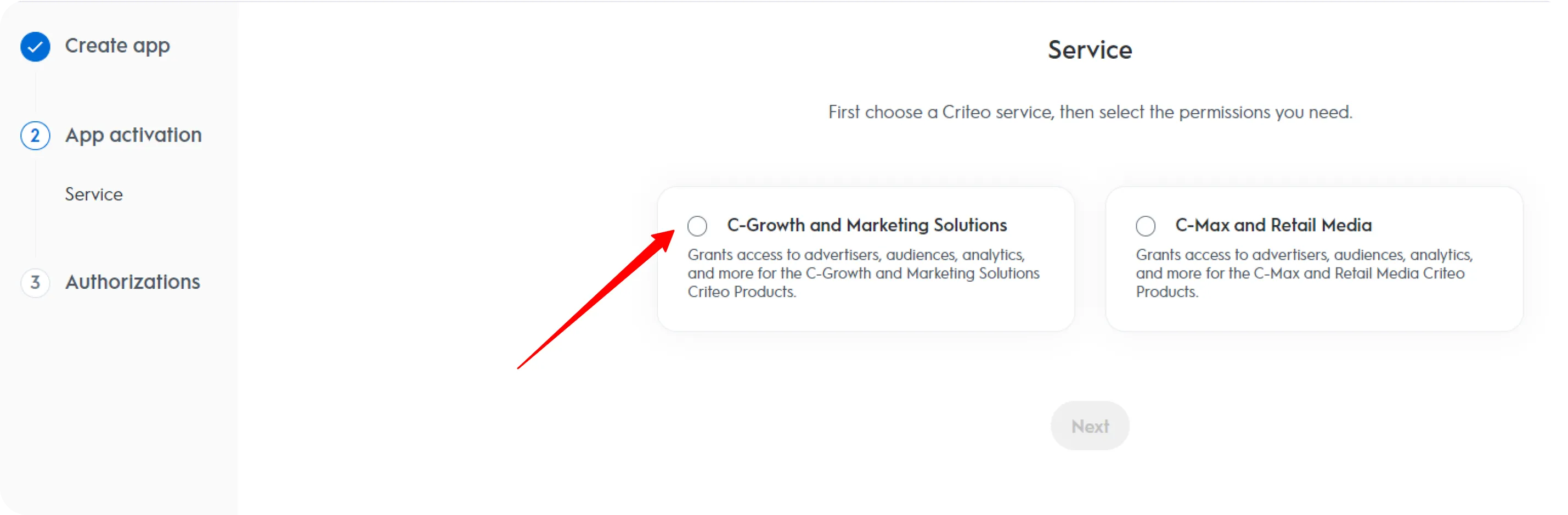
Under Service, choose C-Growth and marketing solutions.
Choose the necessary permissions for your app:
- Analytics — Read
- Campaigns — Read
- Creatives — Read
These are the minimum required permissions for data access.
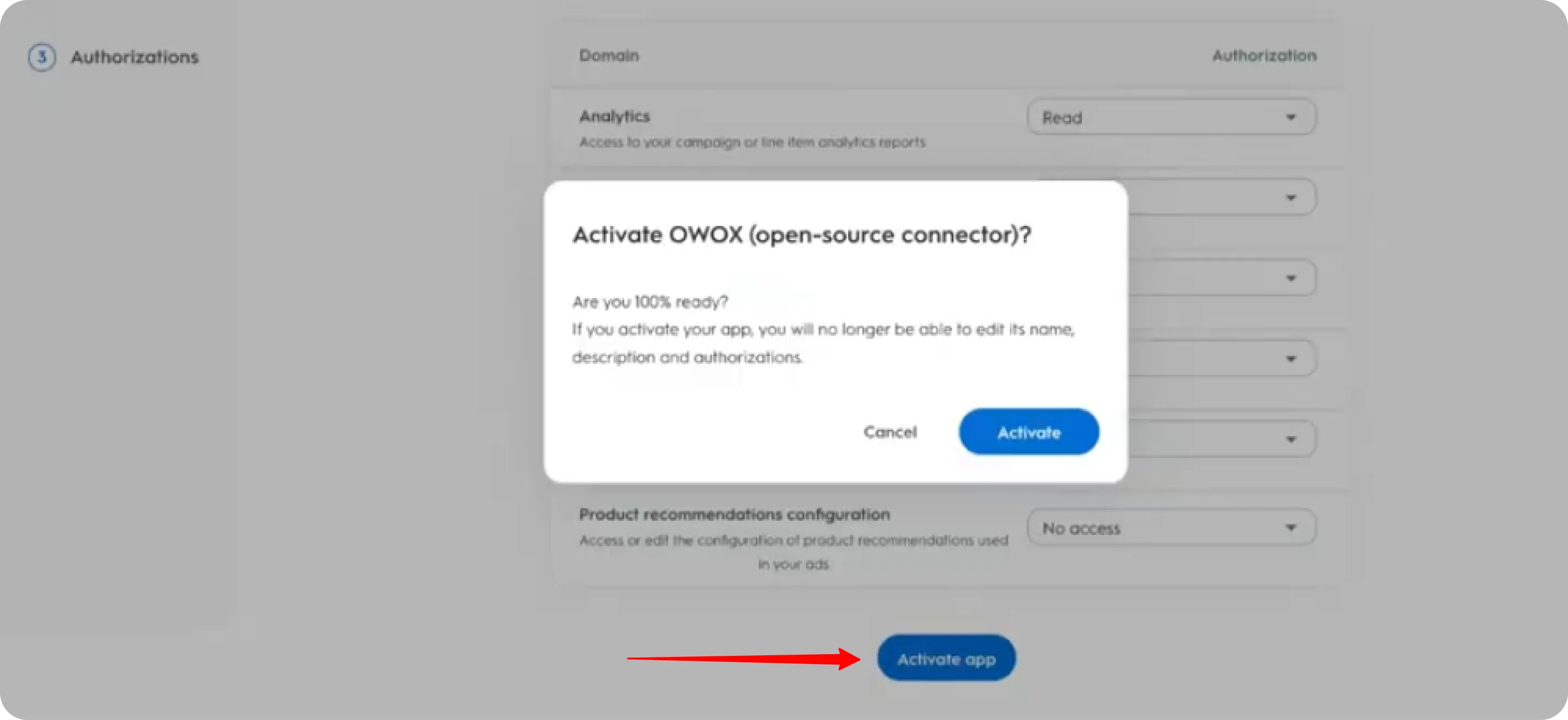
⚠️ Note: After completing this step, you will no longer be able to edit the app name, description, image, or scope.
Click Activate app to proceed.
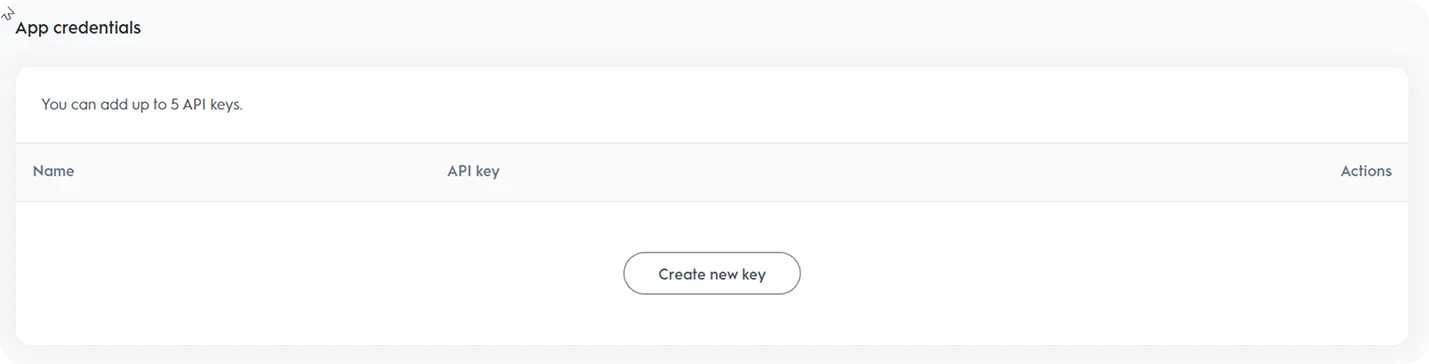
Click Create new key to generate your client_id and client_secret.
This will download a .txt file containing your credentials.
🔐 Make sure to store the keys in a secure location — they will be needed for API authentication.

Click Generate new URL, then click the Copy icon next to the Consent URL field.
Paste the copied Consent URL into your browser and follow the prompt to grant access to your application.
⚠️ The consent defines which advertisers your app can access. The connector will only be able to report on advertisers that were shared with the app on the consent screen. Make sure that:
- the Criteo user who opens the Consent URL has access to every advertiser you plan to import, and
- all of those advertisers are selected on the consent screen (not just one).
If no single user has access to all advertisers (e.g., they are split across portfolios), several users can each open the same Consent URL and share their part — consents from different users add up on the same app.
Once access is granted, you now have all the necessary credentials (client_id, client_secret, and app authorization) to use it as described in the Getting Started guide.
Troubleshooting Credential Setup
Section titled “Troubleshooting Credential Setup”Use this section for authentication and permission errors from the Criteo API.
Error: insufficient-advertisers-permissions (HTTP 403, “You do not have the rights to report on these advertisers”)
Section titled “Error: insufficient-advertisers-permissions (HTTP 403, “You do not have the rights to report on these advertisers”)”Cause: Your client_id and client_secret are valid, but the app’s consent does not cover one or more of the Advertiser IDs configured in the connector. This typically happens after credentials were rotated or re-issued: the consent step was re-done by a user who has access to only some of the advertisers, only some advertisers were selected on the consent screen, or the consent was granted to a different app than the one whose client_id is used by the connector.
Solution:
-
Check which advertisers your app can actually access. Get an access token (note
--data-urlencode— client secrets often contain+and other special characters that break plain-d):Terminal window curl -s -X POST https://api.criteo.com/oauth2/token \-H "Content-Type: application/x-www-form-urlencoded" \--data-urlencode "grant_type=client_credentials" \--data-urlencode "client_id=YOUR_CLIENT_ID" \--data-urlencode "client_secret=YOUR_CLIENT_SECRET"Then list the advertisers the app has been granted access to:
Terminal window curl -s https://api.criteo.com/2026-07/advertisers/me \-H "Authorization: Bearer ACCESS_TOKEN" -
Compare the returned list with the Advertiser IDs configured in the connector. Every ID missing from the response lacks consent and will fail the import.
-
In partners.criteo.com, open the app whose
client_idthe connector uses (verify the ID character by character), click Generate new URL, and have the missing advertisers shared with the app via the Consent URL — by a user (or several users) who actually has access to them. -
Re-run the first two steps to confirm all configured Advertiser IDs now appear in the response, then re-run the connector.
Error: invalid_client (“The client authentication failed, the provided client_id doesn’t exist or the client_secret is invalid”)
Section titled “Error: invalid_client (“The client authentication failed, the provided client_id doesn’t exist or the client_secret is invalid”)”Cause: The client_id and client_secret do not form a valid pair. Most often the secret was copied from a different app (e.g., a new app was created during credential rotation while the connector still uses the old client_id), or the secret was copied with a typo or truncated.
Solution: Take both values from the same key file (the .txt downloaded when you clicked Create new key) of the app that has the consent, and update the connector configuration with that pair.
📌 If you are testing with
curland getinvalid_clienteven though the pair is correct, make sure the secret is URL-encoded (use--data-urlencodeas shown above): a literal+inside-dis decoded as a space and corrupts the secret.
Error: authorization-token-expired (HTTP 401)
Section titled “Error: authorization-token-expired (HTTP 401)”Cause: Criteo access tokens are short-lived (about 15 minutes).
Solution: No action needed — the connector requests a fresh token automatically and retries the request. If you see this error while testing manually, simply request a new token.
Troubleshooting and Support
Section titled “Troubleshooting and Support”If you encounter any issues:
- Please visit Q&A first
- If you want to report a bug, please open an issue
- Join the discussion forum to ask questions or propose improvements