
Destination Management
Destination is an interface or application used by business users to access the data.
Supported destinations include Google Sheets, Microsoft Excel, Data Studio, Email, Slack, Microsoft Teams, and Google Chat. In the near future, we will add support for OData-compatible tools like Tableau and Power BI.
List of Destinations
Section titled “List of Destinations”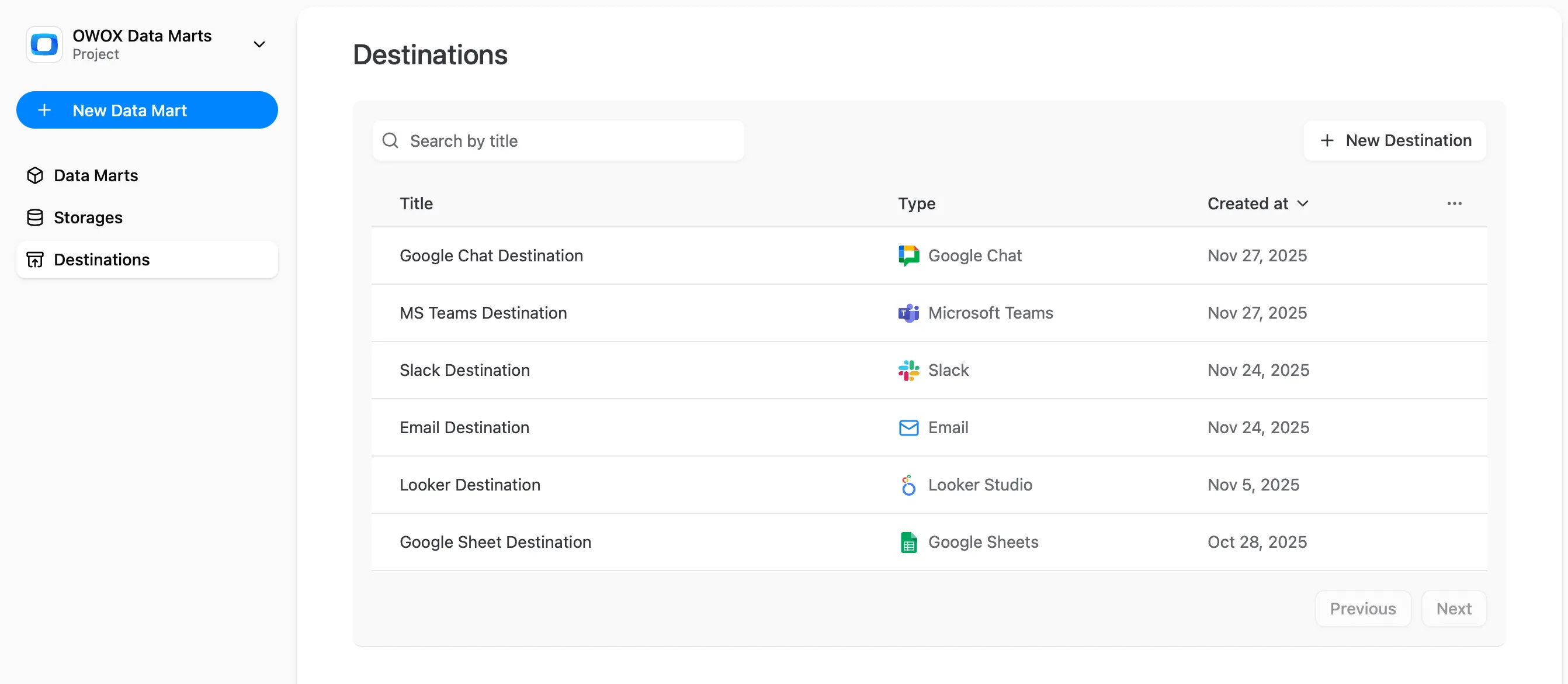
☝️ Email, Slack, Microsoft Teams, and Google Chat Destinations available in the Team plan for OWOX Cloud Editions, and in the Enterprise plan for the Self-Managed Editions.
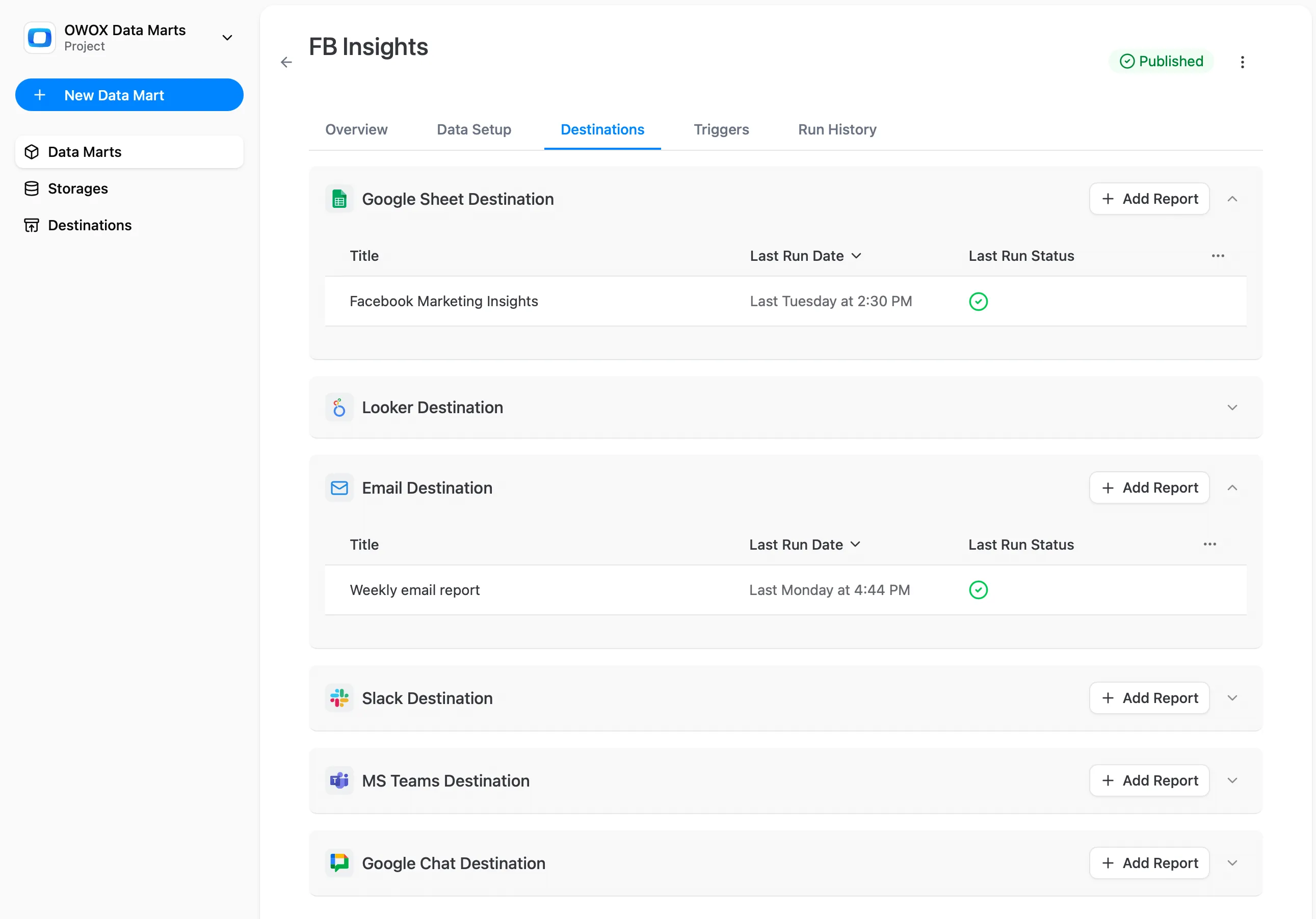
Created Destinations on the Data Mart page
Section titled “Created Destinations on the Data Mart page”Each Data Mart can be linked to multiple Destinations, allowing the data to be used in different ways.
Adding a New Destination
Section titled “Adding a New Destination”To configure a new Destination:
-
On the Destinations page, click + New Destination.
-
Choose a storage type option on the Destination Type dropdown list:
- Google Sheets
- Microsoft Excel
- Data Studio
- Slack
- Microsoft Teams
- Google Chat
- OData (Coming soon)
-
Complete the configuration fields specific to the selected Destination Type. Refer to the corresponding service configuration page for detailed instructions.
-
Click Save to apply the Destination configuration or Cancel to discard changes.
Removing a Destination
Section titled “Removing a Destination”To remove an existing Destination configuration:
- Ensure all associated Reports referencing this Destination are deleted first:
- Navigate to the Data Marts page and identify any Data Mart Reports using the Destination.
- Delete each associated Report individually.
- Go to the Destinations page via the main navigation panel.
- Locate the Destination you want to delete in the table, click the item actions menu (represented by …), and click Delete.
- Confirm the deletion to remove the Destination.
☝️ Attempting to delete a Destination with associated Reports will result in the error: “Cannot delete the destination because it is referenced by N existing report(s)”.
Ensure all dependencies are removed before proceeding.
Rotating a Data Studio Destination Secret Key
Section titled “Rotating a Data Studio Destination Secret Key”Use Rotate Secret Key when a Data Studio Destination’s JSON Config was exposed or when you need to revoke existing Data Studio connector access.
- Go to the Destinations page.
- Locate the Data Studio Destination, click the item actions menu (represented by …), and click Rotate Secret Key.
- Confirm the rotation. The previous key is invalidated, and the new JSON Config is copied to your clipboard.
- Open the Data Studio connector configuration that uses this Destination and update it with the new JSON Config.
Any existing Data Studio data source that still uses the old JSON Config stops working until it is updated.
Managing Owners
Section titled “Managing Owners”Each Destination has an Owners list — the team members responsible for its configuration.
- When a new Destination is created, the creator is automatically assigned as an owner.
- You can add or remove owners in the Destination configuration sheet (the Owners field after the Title).
- Only project members can be assigned as owners.
- Owners are saved together with the rest of the Destination configuration when you click Save.
- You can filter Destinations by owner in the list view using the Owners filter.
☝️ Ownership is currently informational — it does not affect access control. Any user with edit access can modify any Destination regardless of ownership.
Key Considerations
Section titled “Key Considerations”- Each Report requires a single Destination association.
- For additional guidance or troubleshooting, explore the supported Destination configuration pages or join the OWOX Community.