
How to obtain the credentials for the Microsoft Ads source
During this process, you will obtain the following credentials required for the Microsoft Ads source:
- Account ID
- Customer ID
- Developer Token
- Client ID
- Client Secret
- Refresh Token
Before you start: Sign up for ReqBin or Postman if you don’t have an account yet. Both are free tools for sending API requests. You’ll use one of them in Steps 3–5 to obtain the Refresh Token.
Step 1: Register an App in Microsoft Azure
Section titled “Step 1: Register an App in Microsoft Azure”If you haven’t already, sign up for Microsoft Azure and log in to the Azure Portal.
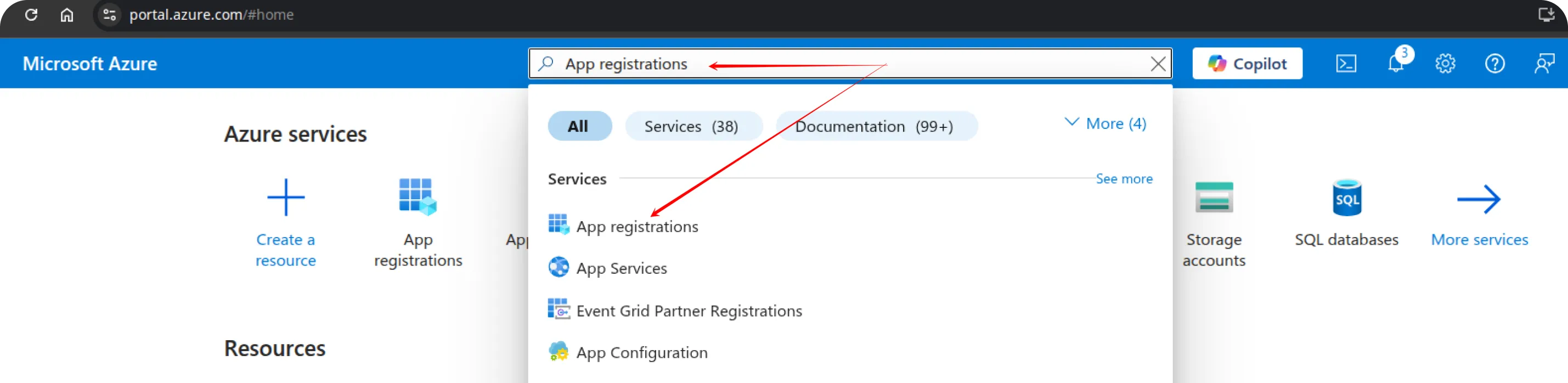
In the Azure Portal, search for and open the App registrations service.
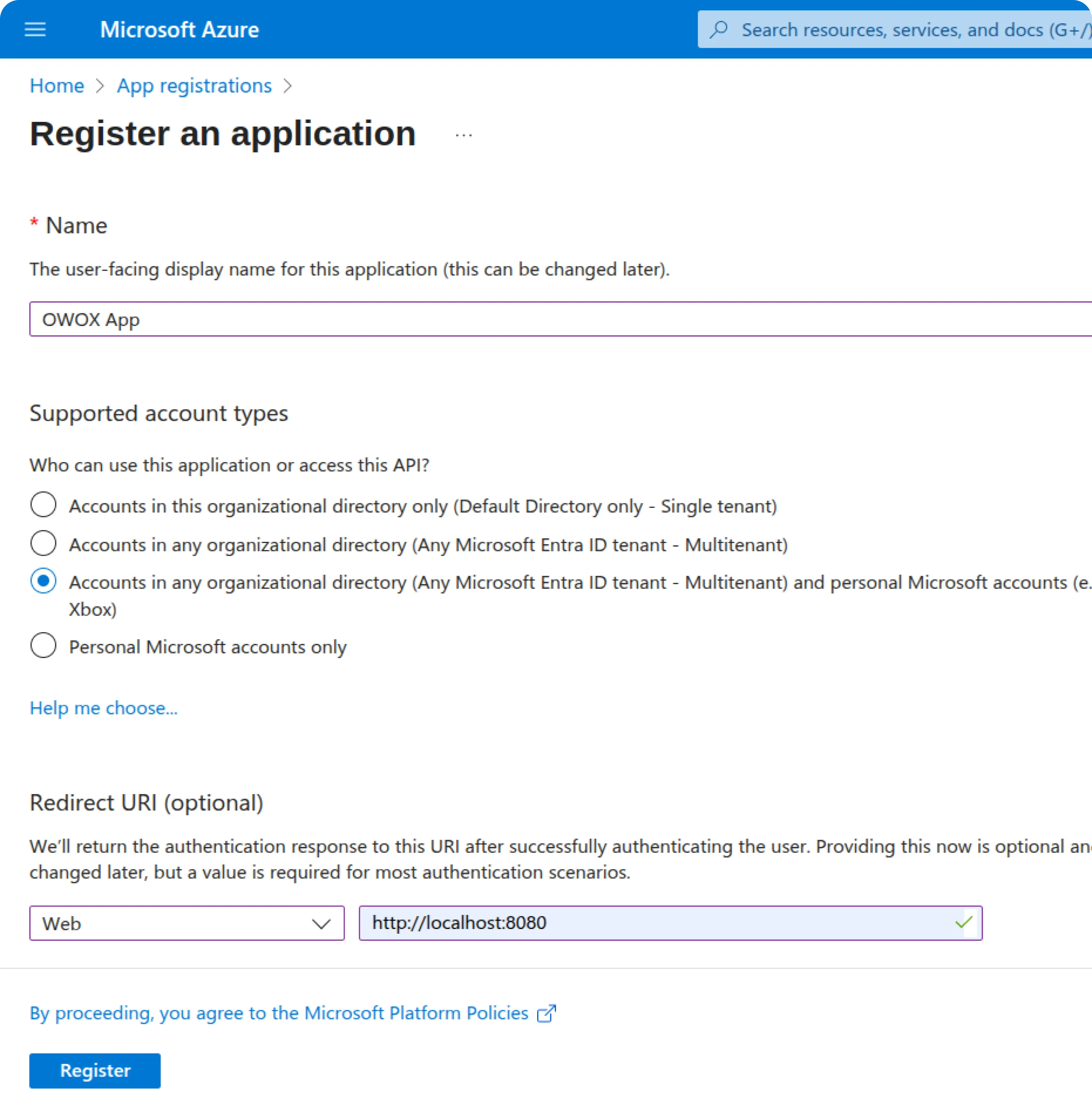
Click New registration and fill in the form:
- Name: Choose a name for your app.
- Supported account types:
Select:
Accounts in any organizational directory (Any Microsoft Entra ID tenant – Multitenant) and personal Microsoft accounts (e.g., Skype, Xbox) - Redirect URI:
- Platform: Web
- URI:
http://localhost:8080
Click the Register button.
Step 2: Generate Client Credentials
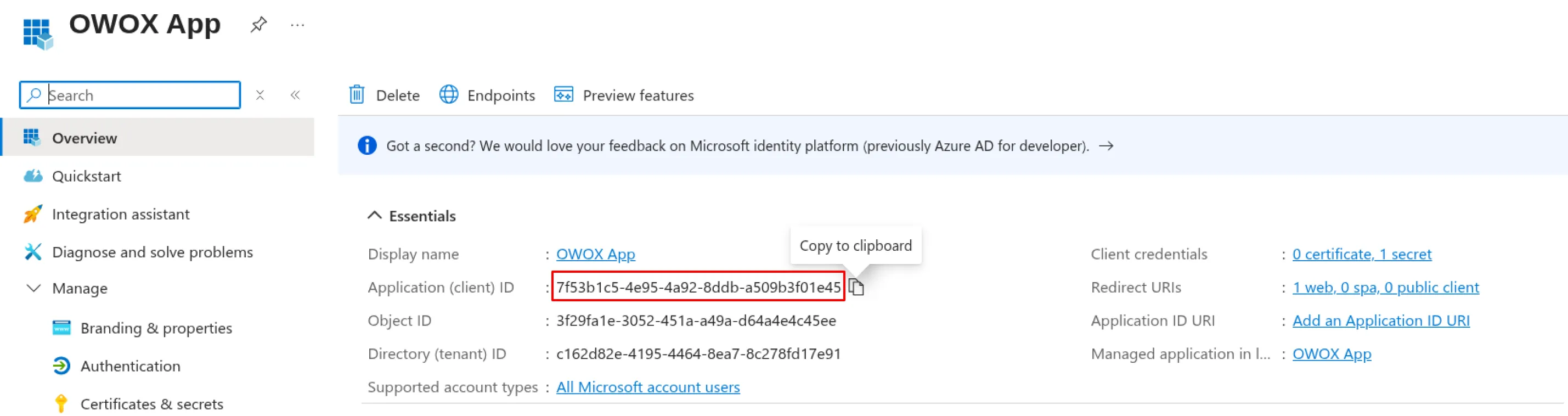
Section titled “Step 2: Generate Client Credentials”First, copy and save your Client ID:
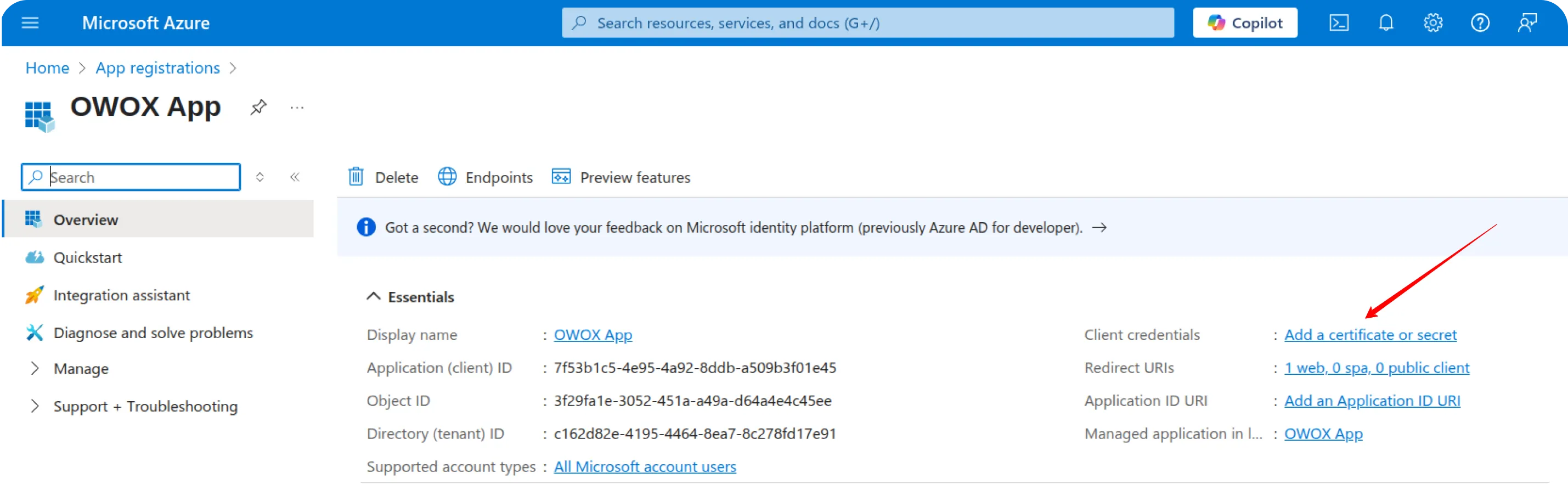
Then, go to Client credentials -> Add a certificate or secret.
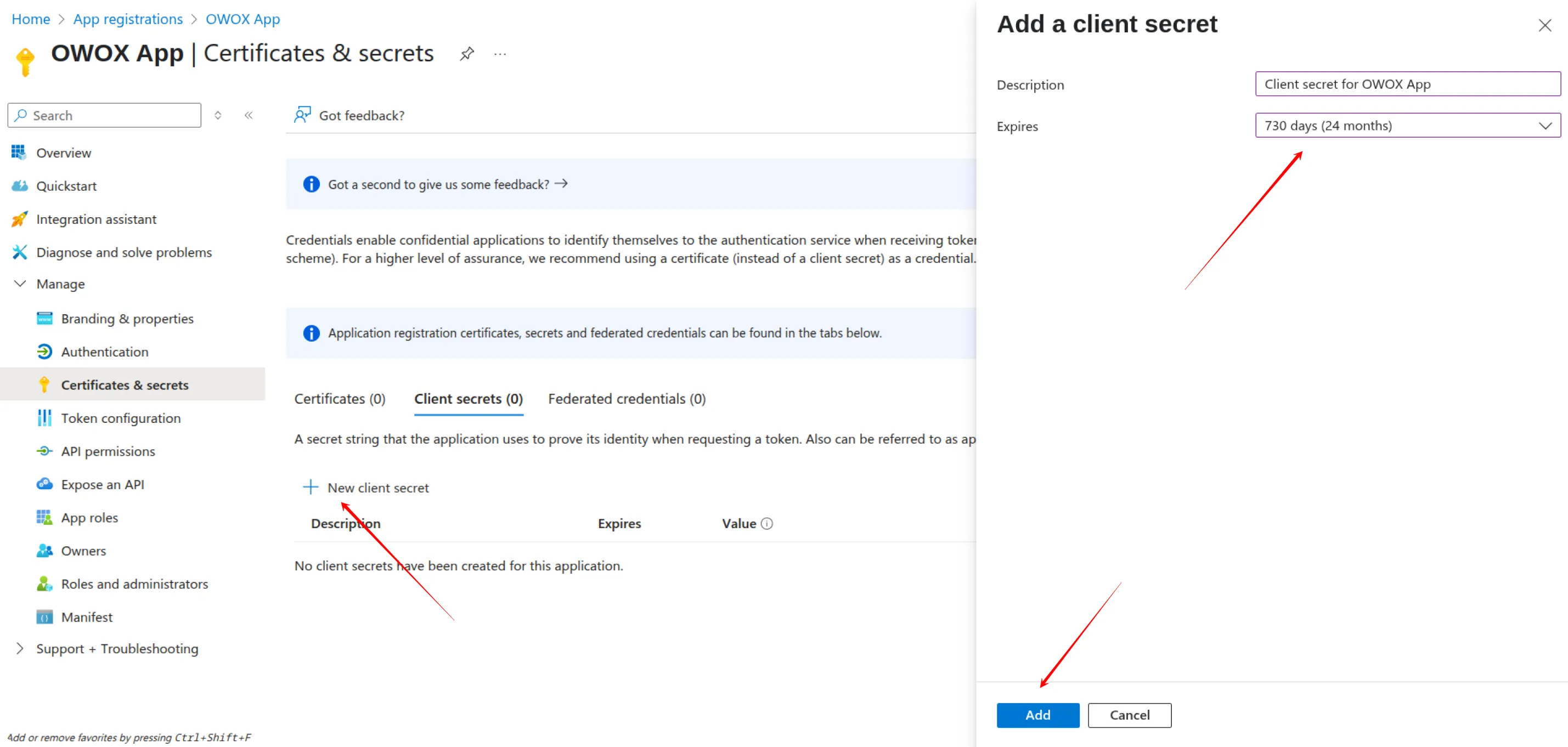
Click New client secret.
Provide a description (e.g., Client secret for OWOX App), choose the maximum expiration period (730 days), and click Add.
⚠️ Important: Copy and securely save the client secret value. You won’t be able to see it again later.
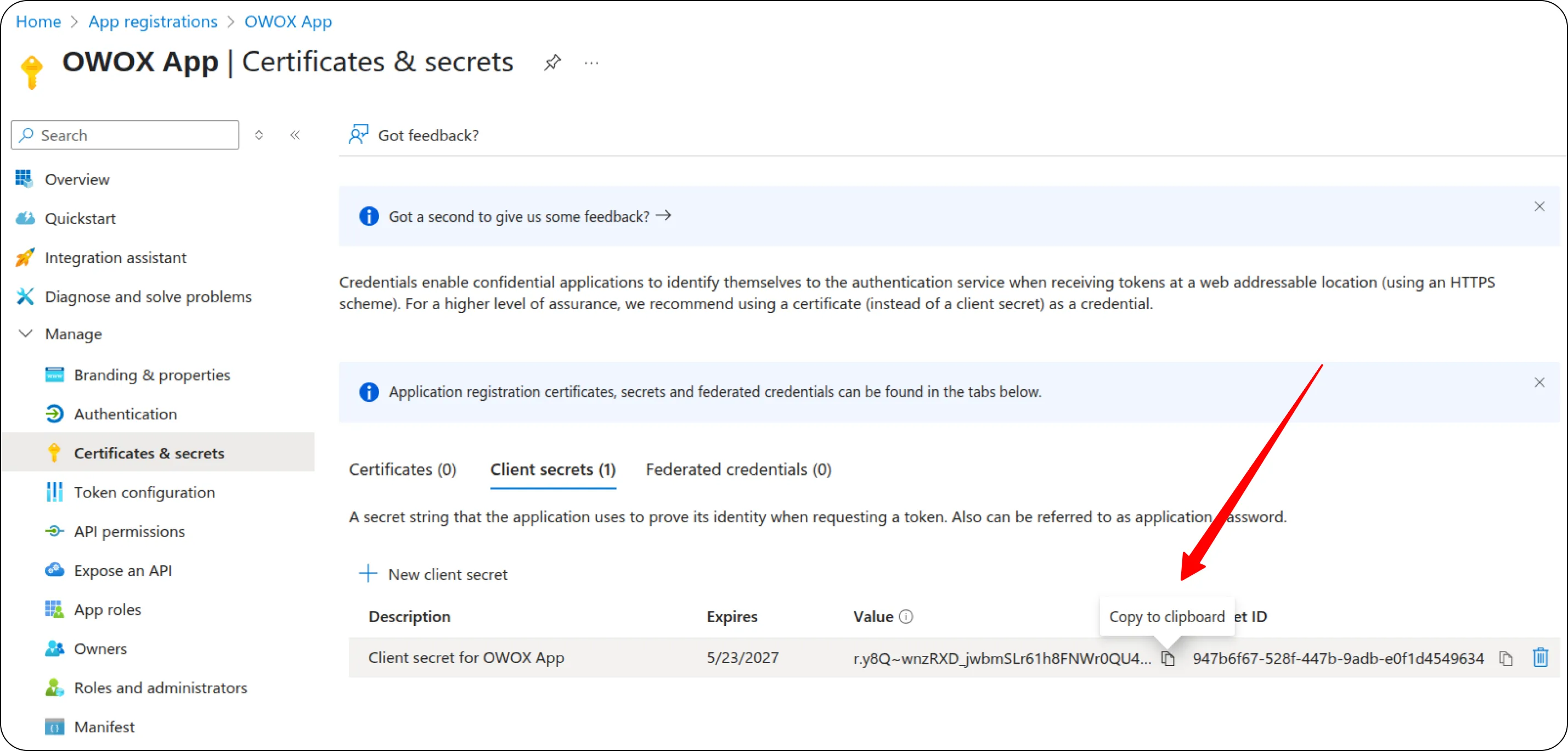
At this point, you have:
- Client ID
- Client Secret
- Redirect URI:
http://localhost:8080
Step 3: Prepare for Authentication
Section titled “Step 3: Prepare for Authentication”Use ReqBin or Postman to build a POST request. This request exchanges the authorization code for a refresh token. Send it to:
https://login.microsoftonline.com/common/oauth2/v2.0/tokenOpen the Body tab. Set the body type to x-www-form-urlencoded. In ReqBin, choose Form as the content type. Add these parameters, replacing YOUR_CLIENT_ID, YOUR_CLIENT_SECRET, and YOUR_AUTHORIZATION_CODE with real values:
Note: You’ll get the Authorization Code from the URL in Step 4. Prepare the request now. The code is short-lived, so a ready request lets you paste and send right away.
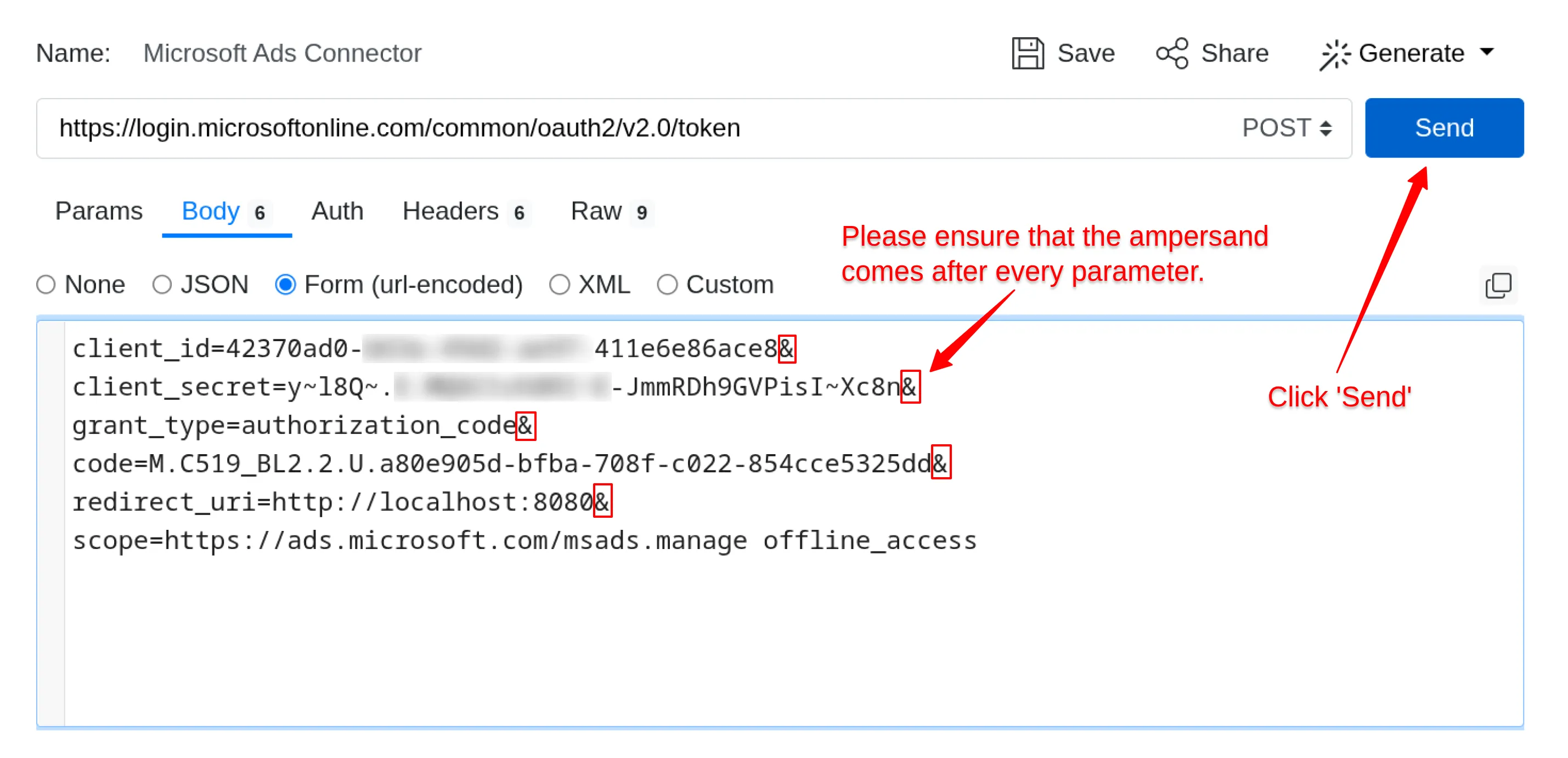
client_id=YOUR_CLIENT_ID&client_secret=YOUR_CLIENT_SECRET&grant_type=authorization_code&code=YOUR_AUTHORIZATION_CODE&redirect_uri=http://localhost:8080&scope=https://ads.microsoft.com/msads.manage offline_access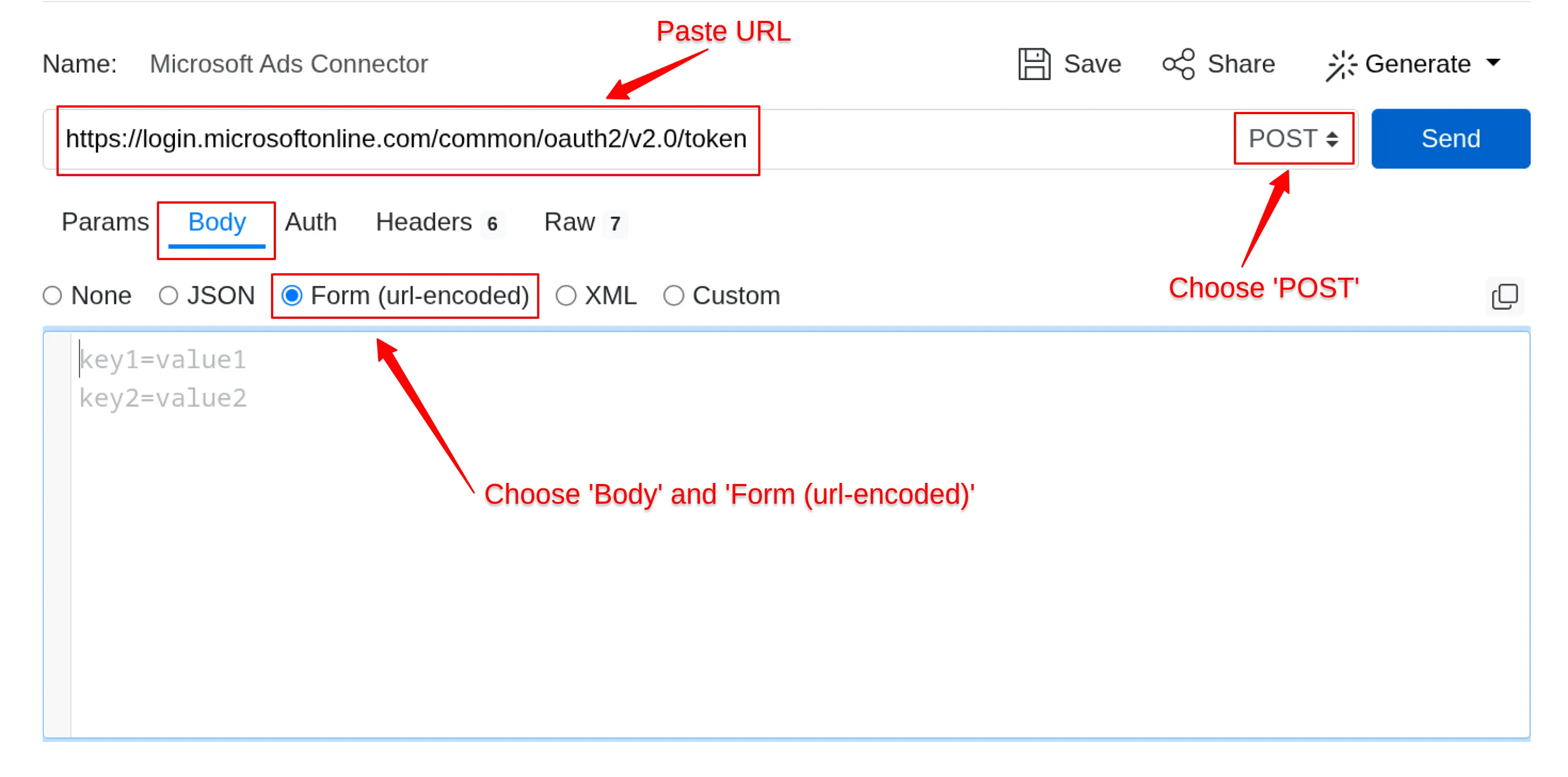
Step 4: Get the Authorization Code
Section titled “Step 4: Get the Authorization Code”Create a URL by replacing CLIENTID with your Client ID:
https://login.microsoftonline.com/common/oauth2/v2.0/authorize?client_id=CLIENTID&response_type=code&redirect_uri=http://localhost:8080&scope=https://ads.microsoft.com/msads.manage offline_accessOpen the URL in your browser. Log in and authorize the app by clicking Accept. After authorization, you will be redirected to:
http://localhost:8080/?code=YOUR_AUTHORIZATION_CODE
⚠️ Important: Sign in with the Microsoft Advertising user that can access the Account ID and Customer ID you collect in Step 6. The Refresh Token represents this signed-in user, so the connector can only import accounts that this user can reach.
Copy the code value from the URL.
Example:
If the redirect URL is:
http://localhost:8080/?code=M.C519_BAY.2.U.0a895e39-774a-e677-b4bb-8589ce3e0beb
Your Authorization Code is:
M.C519_BAY.2.U.0a895e39-774a-e677-b4bb-8589ce3e0beb
Step 5: Exchange the Authorization Code for a Refresh Token
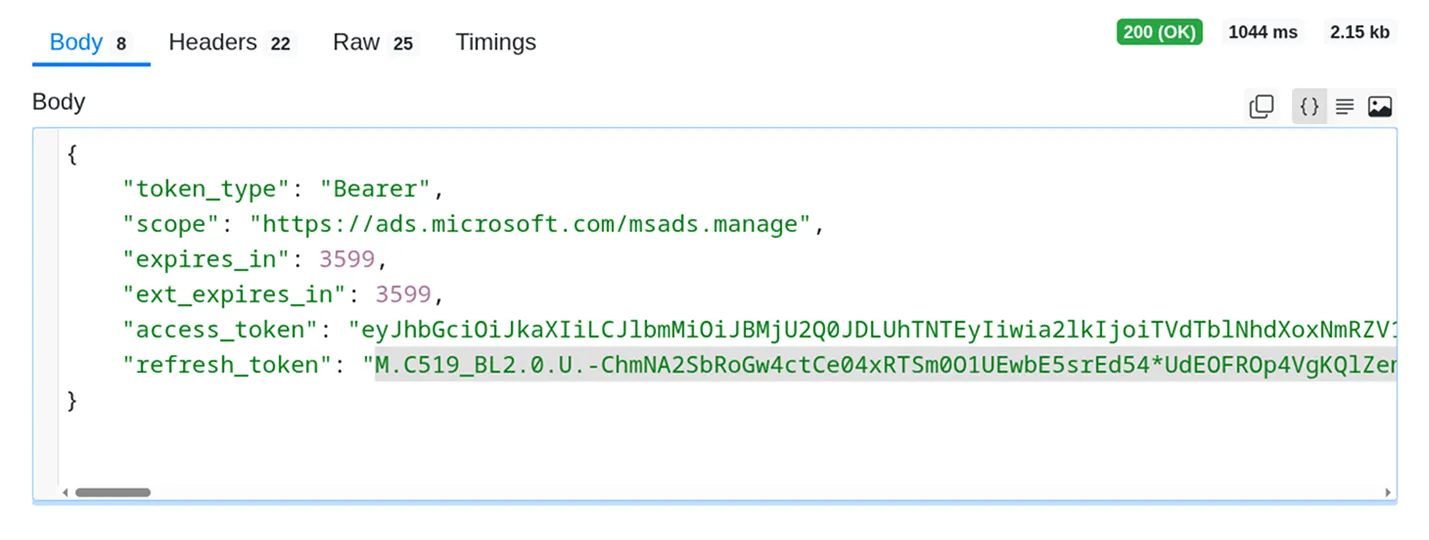
Section titled “Step 5: Exchange the Authorization Code for a Refresh Token”In ReqBin or Postman, paste the authorization code from Step 4. Click Send. A successful request returns a Refresh Token in the response. Store it securely — you’ll use it to authenticate API requests.
Step 6: Get Account ID and Customer ID
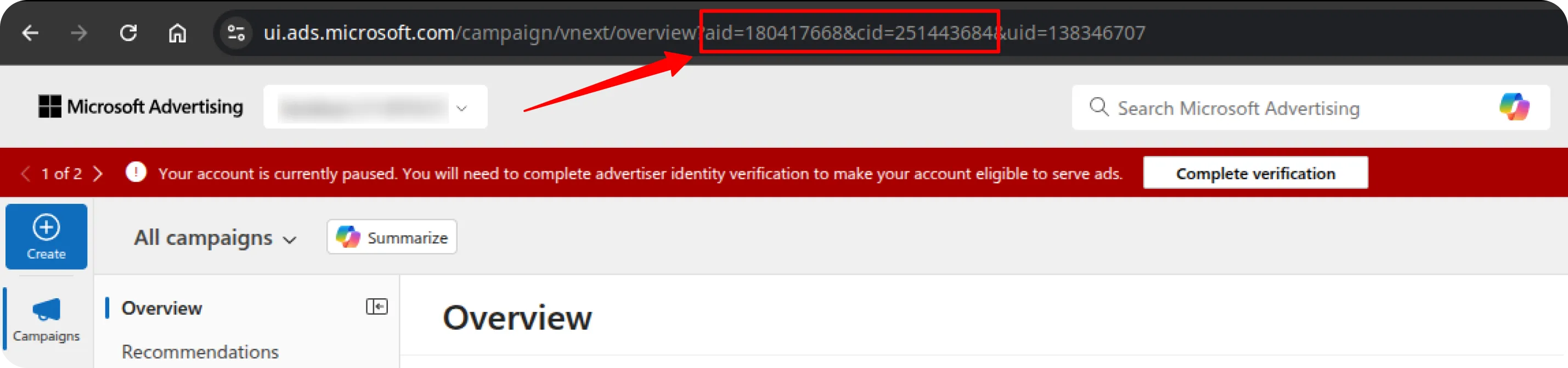
Section titled “Step 6: Get Account ID and Customer ID”- Go to https://ads.microsoft.com/ and log in to your Microsoft Ads account.
- Switch to the account you want to import and open the Campaigns page.
- Copy the numeric IDs from the browser URL:
- Use the
aidvalue as Account ID. - Use the
cidvalue as Customer ID.
- Use the
Important: Microsoft Ads also shows account and customer numbers in some places. Those values can be alphanumeric, like
A00000A0AA. Don’t use them here. The connector needs the numeric API IDs fromaidandcid.
Step 7: Get Your Developer Token
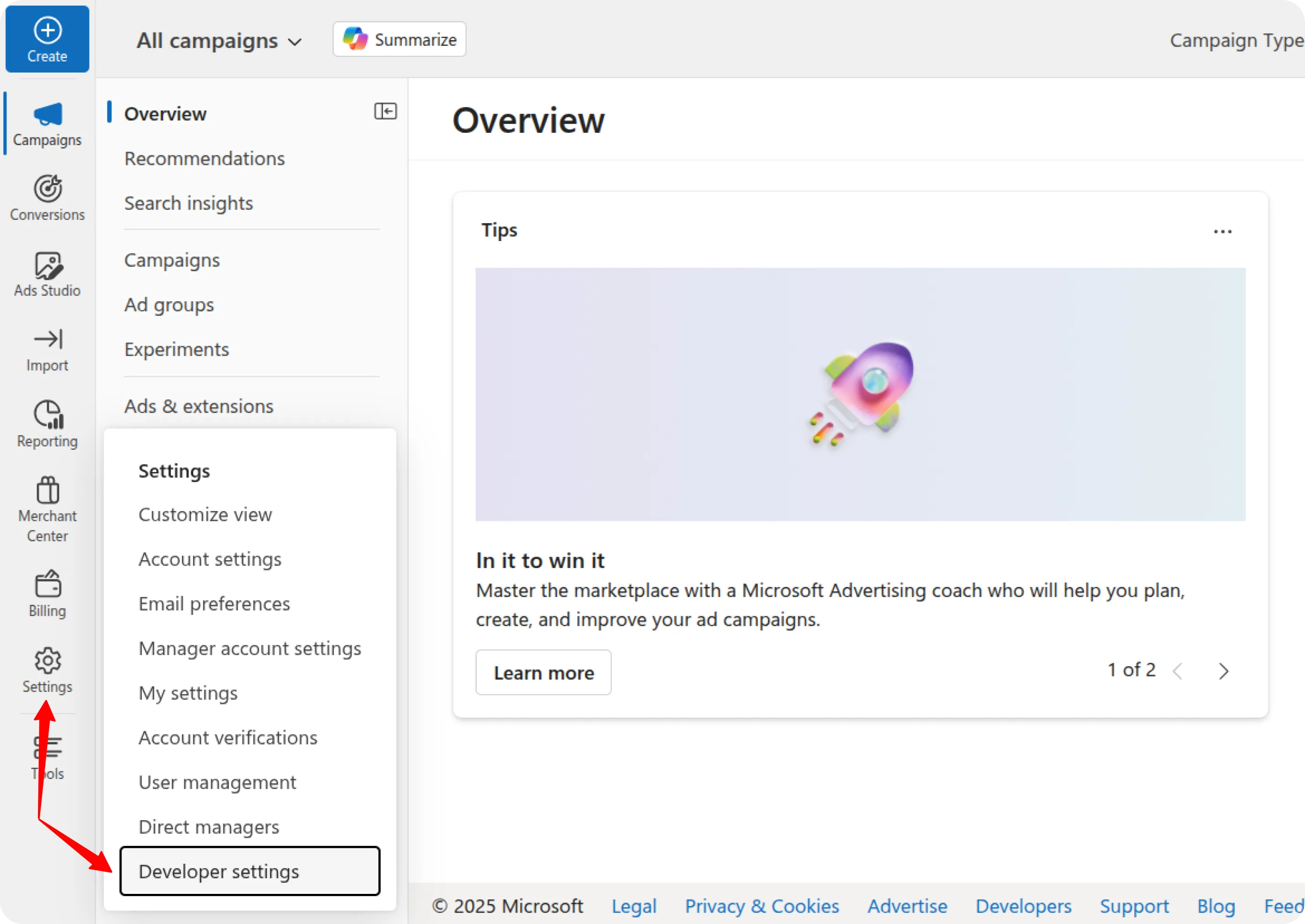
Section titled “Step 7: Get Your Developer Token”In the Microsoft Ads interface, go to Settings → Developer Settings.
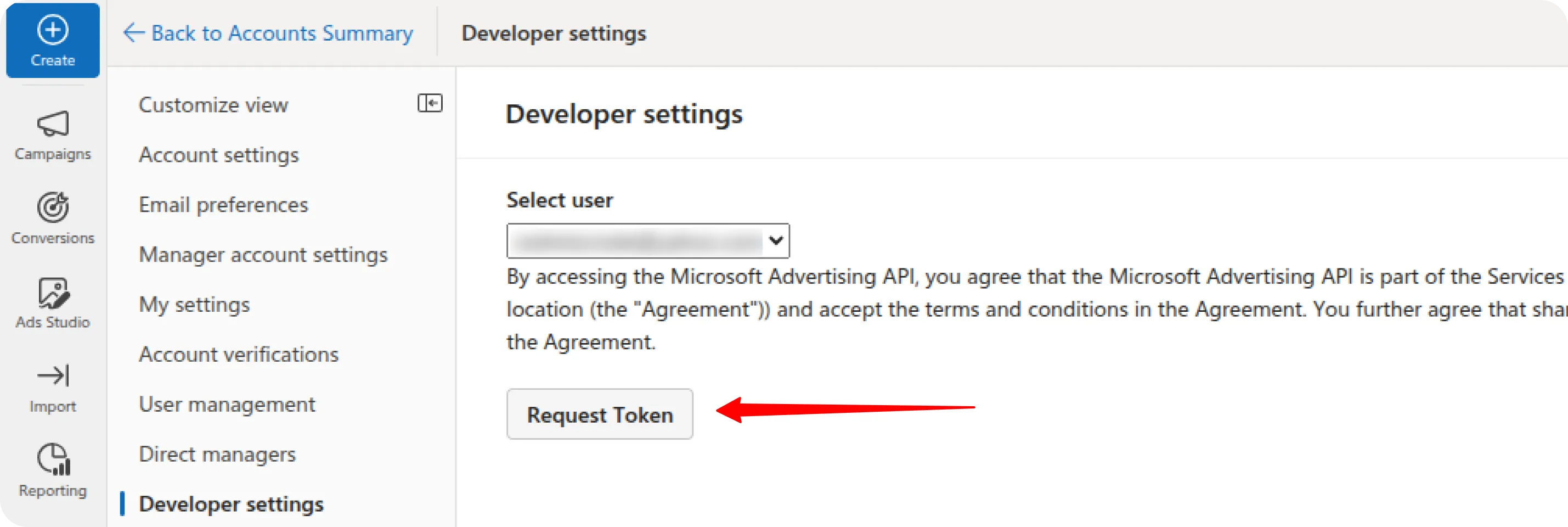
Click Request Token, and copy the generated Developer Token.
✅ Final Summary
Section titled “✅ Final Summary”At this point, you should have the following credentials:
- Account ID
- Customer ID
- Developer Token
- Client ID
- Client Secret
- Refresh Token
These credentials are required to connect to the Microsoft Ads source and begin importing your advertising data.
Troubleshooting Refresh Token Errors
Section titled “Troubleshooting Refresh Token Errors”If you encounter any errors while obtaining the refresh token, check the possible causes and recommended solutions below.
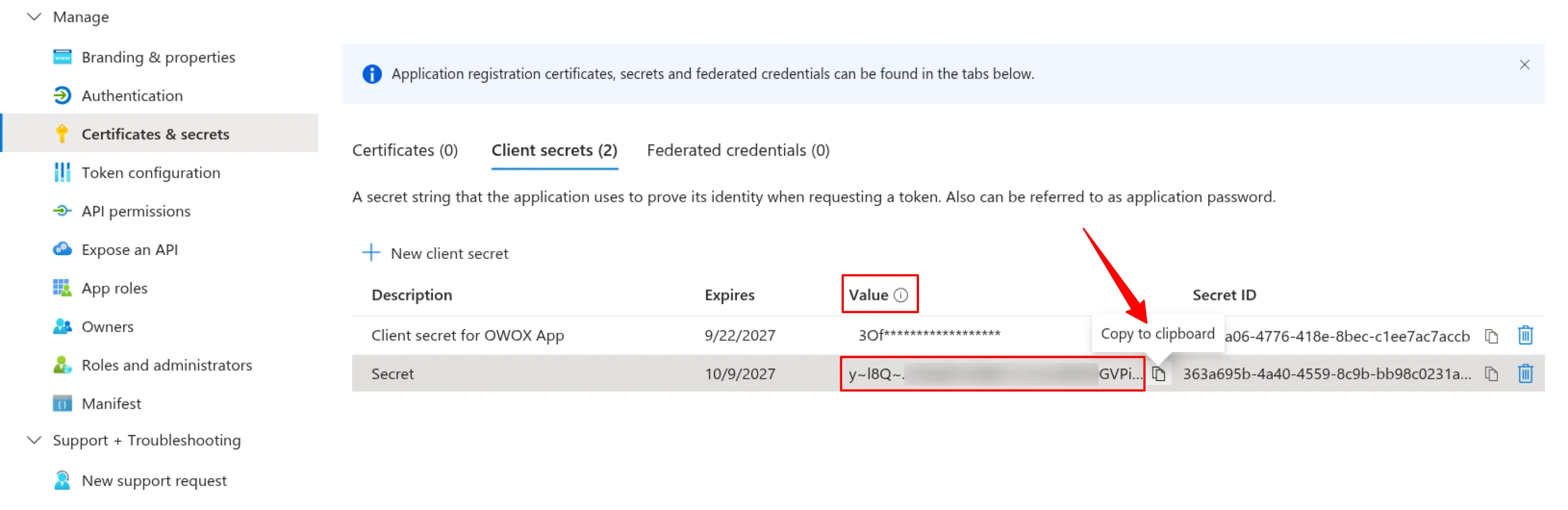
Error: Invalid client secret provided. Ensure the secret being sent in the request is the client secret value, not the client secret ID, for a secret added to app '(YOUR APP ID)'
Section titled “Error: Invalid client secret provided. Ensure the secret being sent in the request is the client secret value, not the client secret ID, for a secret added to app '(YOUR APP ID)'”Cause:
You are using the Secret ID instead of the Secret Value in your request.
Only the Secret Value can be used to authenticate your app — the Secret ID will not work.
Solution:
- Return to Step 2 and confirm that you copied the Secret Value, not the Secret ID.
- If the Secret Value is no longer visible (it is shown only once), create a new Client Secret in your app and copy the value immediately.
Error: The provided value for the 'code' parameter is not valid. The code has expired.
Section titled “Error: The provided value for the 'code' parameter is not valid. The code has expired.”Cause:
The temporary authorization code has expired.
Microsoft (and other platforms) issue short-lived authorization codes that must be exchanged for tokens within a limited time window (usually just a few minutes).
Solution:
Repeat Step 4 to obtain a new temporary authorization code and retry the request.
✅ Tip:
Always generate and use the authorization code immediately after receiving it to avoid expiration issues.
Troubleshooting and Support
Section titled “Troubleshooting and Support”If you encounter any other issues:
- Please visit Q&A first
- If you want to report a bug, please open an issue
- Join the discussion forum to ask questions or propose improvements