
Email Notifications
Email notifications keep your team informed about Data Mart run results without having to check the dashboard manually. OWOX sends a single batched email covering all relevant runs within the configured Grouping Delay window.
What Triggers an Email
Section titled “What Triggers an Email”An email is sent when:
- At least one Data Mart run matches the notification type (failed or successful) within the grouping window, and
- The notification is enabled, and
- At least one receiver is configured.
☝️ Make sure that the
service@e.owox.comaddress is not in your block list, and that emails do not end up in your spam folder.
Email Content
Section titled “Email Content”The email contains a summary of all matching runs grouped by Data Mart.
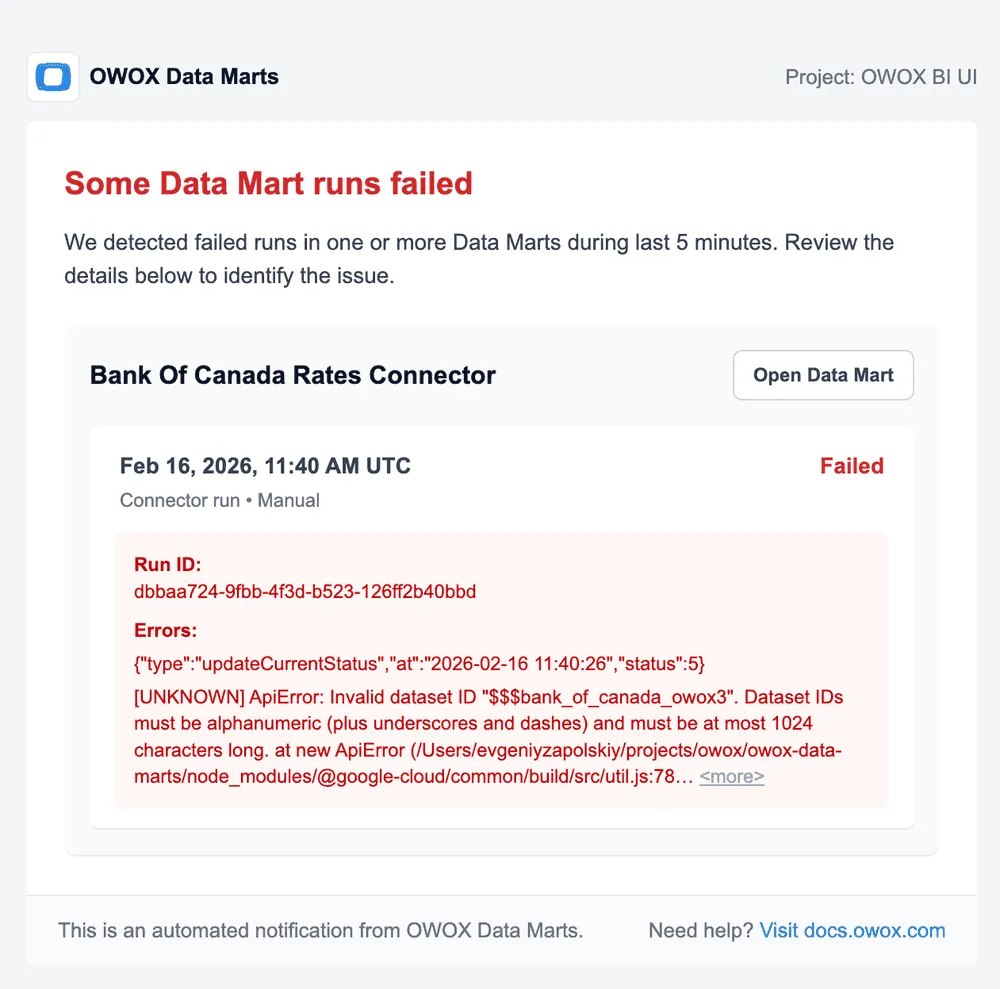
For Failed runs emails, each Data Mart section shows:
- Data Mart name with a direct link
- Run timestamp and duration
- Error message(s) that caused the failure
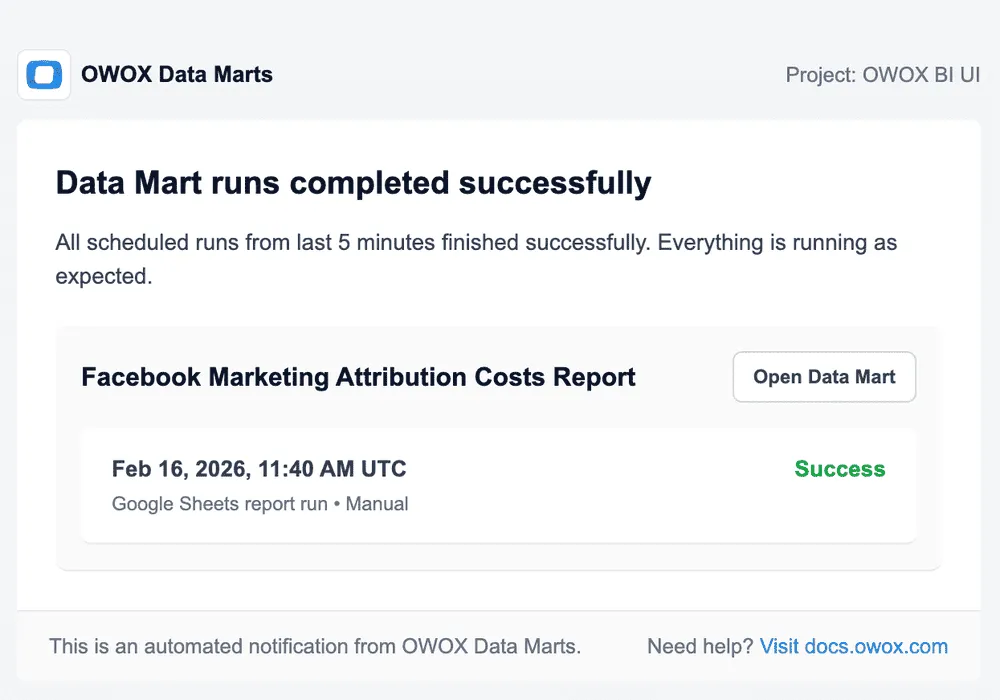
For Successful runs emails, each Data Mart section shows:
- Data Mart name with a direct link
- Run timestamp and duration
Configuring Email Receivers
Section titled “Configuring Email Receivers”- Open Notifications in the left sidebar.
- Click on the notification row you want to configure.
- In the Receivers field, select the project members who should receive the email.
- Click Save.
☝️ Only project members with email notifications enabled will receive emails. If a member has notifications disabled in their account settings, they will appear with a warning badge in the receivers list.